
Choose who can see and answer tickets
Set the admin role for every panel, and support roles for one.
Tickets have two kinds of staff. The admin role is one role that handles tickets from every panel. Support roles are set per panel, so one team can answer support while another answers reports. A role is a group you give members in Discord, like Moderator.
Both are full ticket staff, not just viewers: they can add and remove people, close, claim, rename and transfer tickets. Members with Discord's Manage Channels permission can act on tickets too.
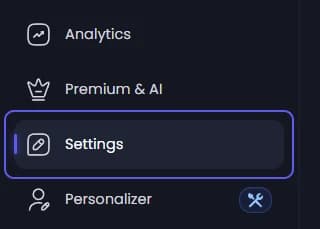
Pick the admin role
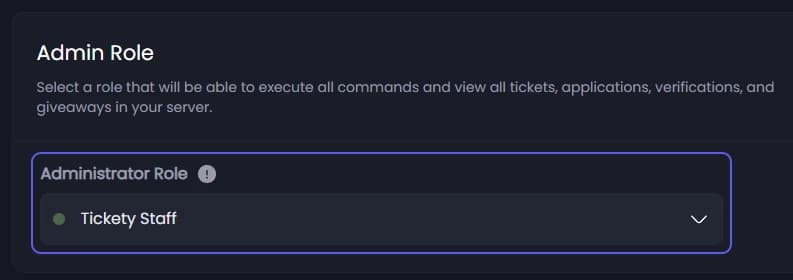
Under Admin Role, open Administrator Role and pick the role for your ticket admins. Tickety opens no tickets at all until one is set.
This is a Tickety role, separate from Discord's Administrator permission.
Save
Press Save Changes in the bar at the bottom of the page.
Open a panel
In the sidebar, under Tickets, click Ticket Panels, then click the panel whose staff you want to set.

Pick the support roles
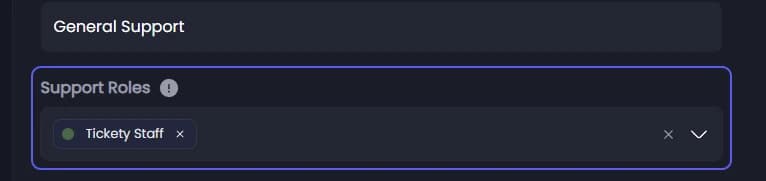
On the General tab, under Panel Settings, open Support Roles and pick the roles that answer this panel's tickets. A panel needs at least one.
Save
Press Save Changes in the bar at the bottom of the page. New tickets from this panel let these roles in. Tickets that are already open keep the roles they were opened with.
Neither role opens the dashboard for its members. To let staff use the dashboard, see Give a role access to the dashboard.