
Save transcripts and choose who can read them
Turn on transcripts for a panel, then lock them down so only the people you pick can open the link.
A transcript is a saved copy of a ticket's conversation, made when the ticket closes. It is a page on tickety.top. Its link is posted in the panel's log channel, and sent to the member in their close message.
Open the panel
Open your dashboard and pick your server. In the sidebar, under Tickets, click Ticket Panels, then click the panel.

Turn transcripts on
On the General tab, go to Panel Settings and Transcript Settings.
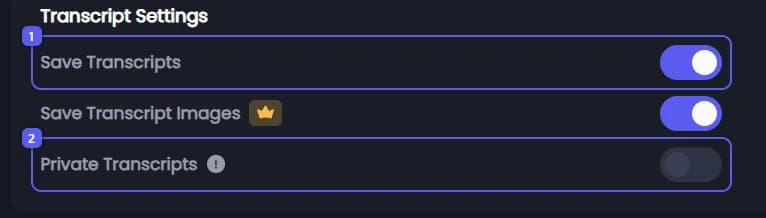
- Make sure Save Transcripts is on. It is on to start with. Just below, Save Transcript Images 👑 also keeps the pictures posted in the ticket.
- Private Transcripts is off to start with: anyone who has the link can read the transcript. Turn it on to make readers sign in with Discord first, so only allowed people can open it.
Pick who may read it 👑
With Private Transcripts on, Who Can View appears. Switch off anyone who should not read transcripts: Ticket Creator, Added Users, Support Roles or Admin Role.
The server owner and members with Manage Server can always read them too. The check happens each time a link is opened, so it covers old transcripts as well.
Check the log channel
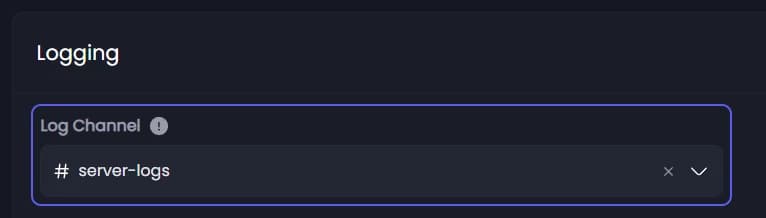
Click the Logging tab. Log Channel is where transcript links are posted. Default uses the Logging Channel from Settings. Keep it a private staff channel, or everyone who can see it can read every ticket from this panel.
Save
Press Save Changes in the bar at the bottom of the page. Tickets closed from now on are saved this way.
It did not work?
Features marked with a crown (👑) need a Premium Subscription.