
Ask questions before a ticket opens
Turn on the form so members answer a few questions first, and their answers land in the ticket.
With a form, pressing the ticket button opens a small pop up with your questions instead of opening the ticket straight away. The answers are posted in the ticket, so staff know the issue before they reply. Each panel has its own form, and it works as soon as you save.
Open the panel
Open your dashboard and pick your server. In the sidebar, under Tickets, click Ticket Panels, then click the panel.

Go to the Forms tab
Click the Forms tab under the page title.
Turn the form on
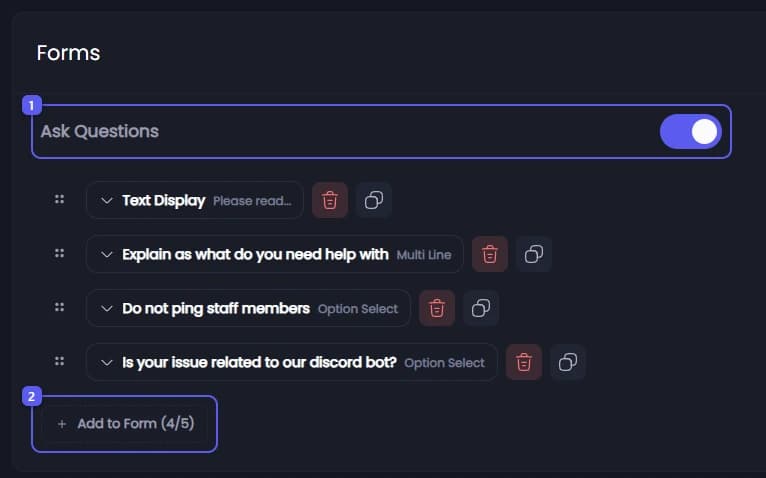
- Under Forms, turn on Ask Questions.
- Press Add to Form. The numbers on the button show how many items the form holds, out of 5.
Pick what to add
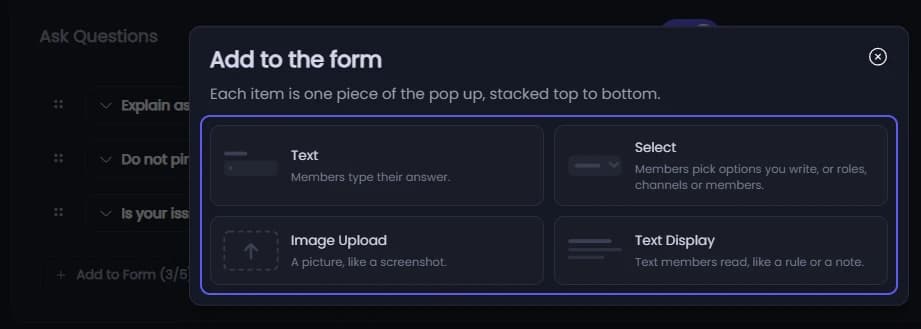
Each card adds one item to the pop up:
- Text: members type. Under Answer Type, pick Single Line or Multi Line. Placeholder is the grey example text in the box, and Character Limits sets the shortest and longest answer, from 0 to 1024.
- Select: members choose. Under Answer Type, pick Option Select or Checkbox to use the choices you type under Options, or Role Select, Channel Select or User Select to offer your server's roles, channels or members.
- Image Upload 👑: members upload a picture.
- Text Display: text members only read, like a rule or a note. See Add text between questions.
A form asks 3 questions, or 5 👑. A text question stays a text question and a select stays a select, so to change that, delete it and add a new one.
Write the question
Type the question in Question Label, up to 45 characters, like "What is your username?". Use Description for a hint under it, up to 100 characters.
Decide if it is required
Required is on to start with, so members cannot send the form without answering. Turn it off to let them skip the question.
Add text between questions
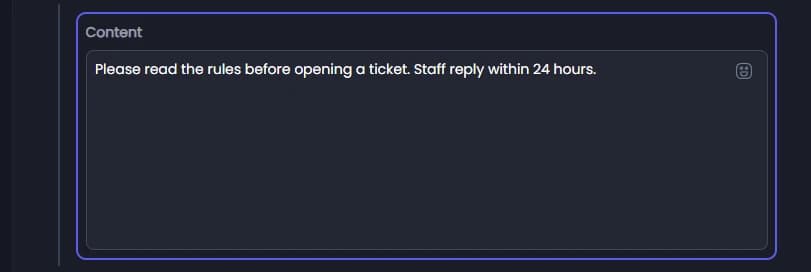
Write the text of a Text Display in Content with Discord markdown and emoji, then drag it into place like a question. Members have nothing to answer there, and it is not posted in the ticket.
Text displays are free and do not count as questions, but the pop up holds 5 items at most, text displays included. All text displays in a form share 4000 characters.
Save
Add more items the same way, then press Save Changes in the bar at the bottom of the page. The next member to press the button gets the form.
It did not work?
Features marked with a crown (👑) need a Premium Subscription.