
Create a ticket panel and post it
Set the admin role, build a panel with support roles and a category, then post it in a channel.
A panel is the message in your server that members press to open a ticket. One panel is one kind of ticket, like Support or Reports. At the end of this guide, yours is posted in a channel.
You need the Manage Server permission in your Discord server to use the dashboard.
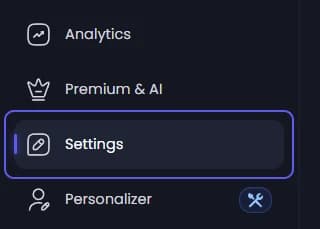
Pick the admin role
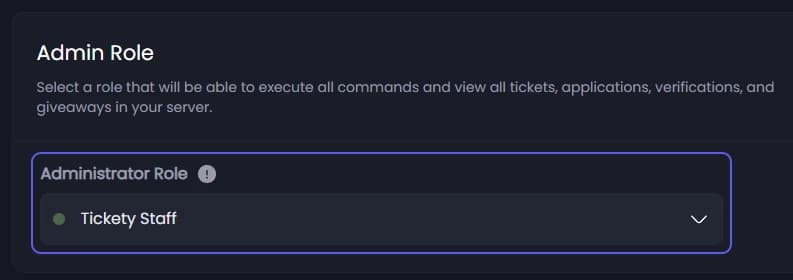
Under Admin Role, open Administrator Role and pick a role. A role is a group you give members in Discord, like Moderator.
Tickety opens no tickets at all until this is set. Members with this role can handle tickets from every panel.
Already picked? Skip to step 4.
Save
A bar slides up at the bottom of the page. Press Save Changes.
Start a new panel
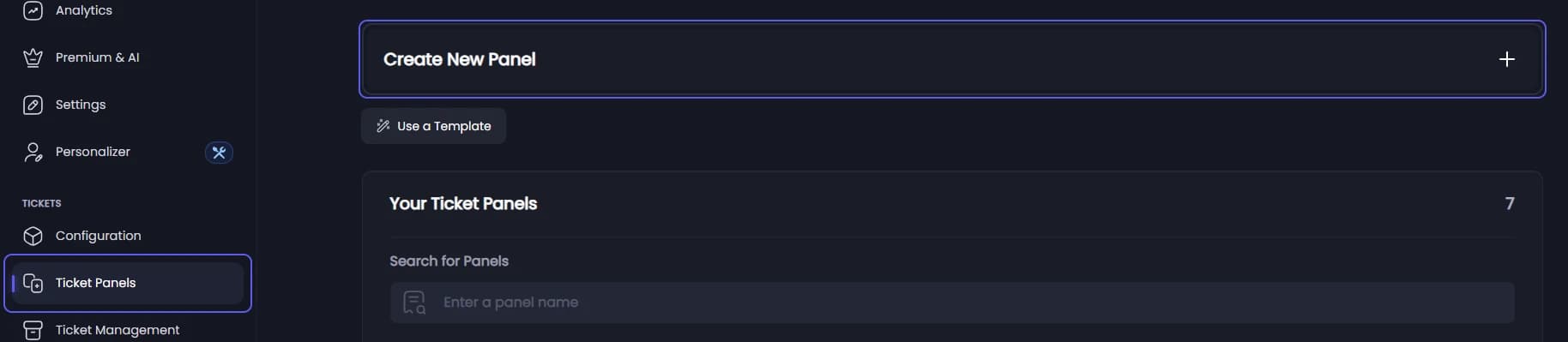
In the sidebar, under Tickets, click Ticket Panels. Then press Create New Panel.
On your first panel a short setup wizard opens instead of the editor. Press Advanced Settings at the top right to leave it and follow this guide.
Set up the panel
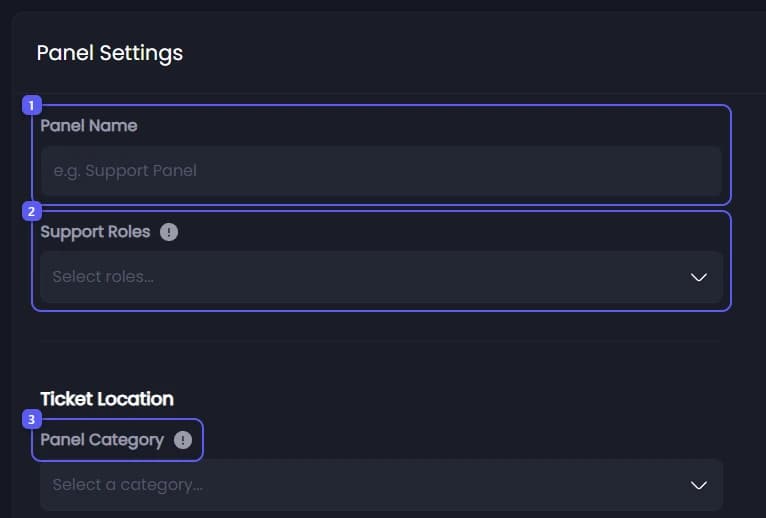
You are on the General tab, under Panel Settings.
-
Type a name in Panel Name, like Support. Up to 80 characters.
-
Open Support Roles and pick the roles that answer these tickets. They can close, claim, rename and add people to every ticket from this panel. A panel needs at least one support role.
-
Open Panel Category and pick a category. A category is a folder in your Discord channel list. Each new ticket gets its own channel inside it.
A category holds 50 channels. For a busy panel, add spare categories in Overflow Categories just below it, up to 5. Tickety moves on to the next one when a category fills up.
Write the panel message
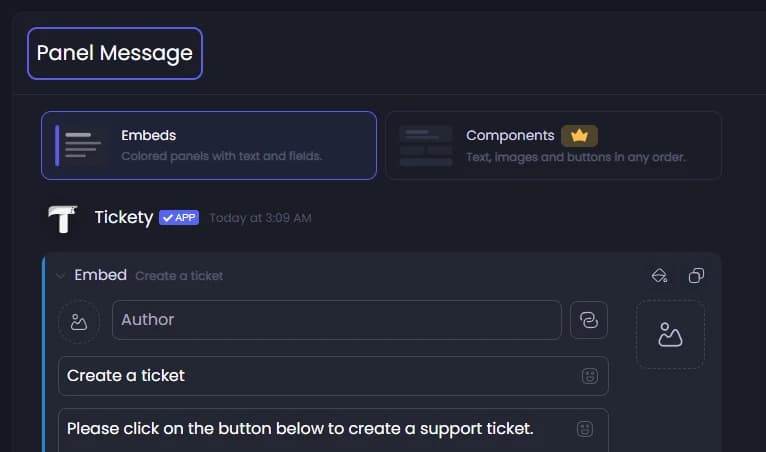
Click the Embed tab. Under Panel Message, click the title and type your own, then do the same for the text under it. This is what members read above the button.
Set the button text
Scroll down to Panel Button Style. Type the button text in Label. It starts as "Create a ticket".

Publish

- Open Channel to post panel in... and pick the channel where members should see the panel. Tickets are not created in this channel, only the panel is posted there.
- Press Publish. Tickety saves the panel, posts it in the channel, and takes you back to Ticket Panels.
Create, next to Publish, saves the panel without posting it.
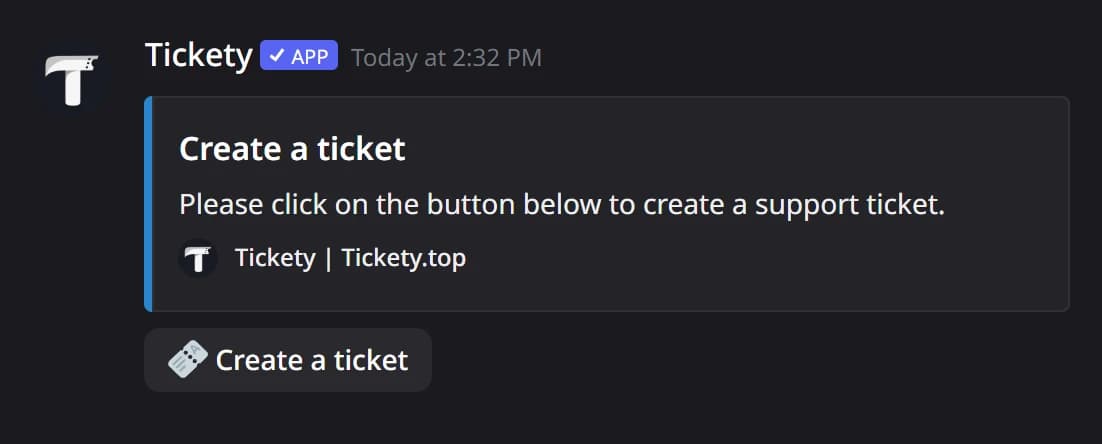
In Discord, the posted panel looks like this. A member presses the button to open a ticket.
It did not work?
Any other message: Members get an error when they open a ticket lists them all.