
Post a live ticket status board
A message that keeps itself up to date with open ticket counts and per panel stats.
A status board is one message in a channel that Tickety keeps editing: how many tickets are open, today's totals, and a row per panel. Post it once and it updates itself.
Open Status Board
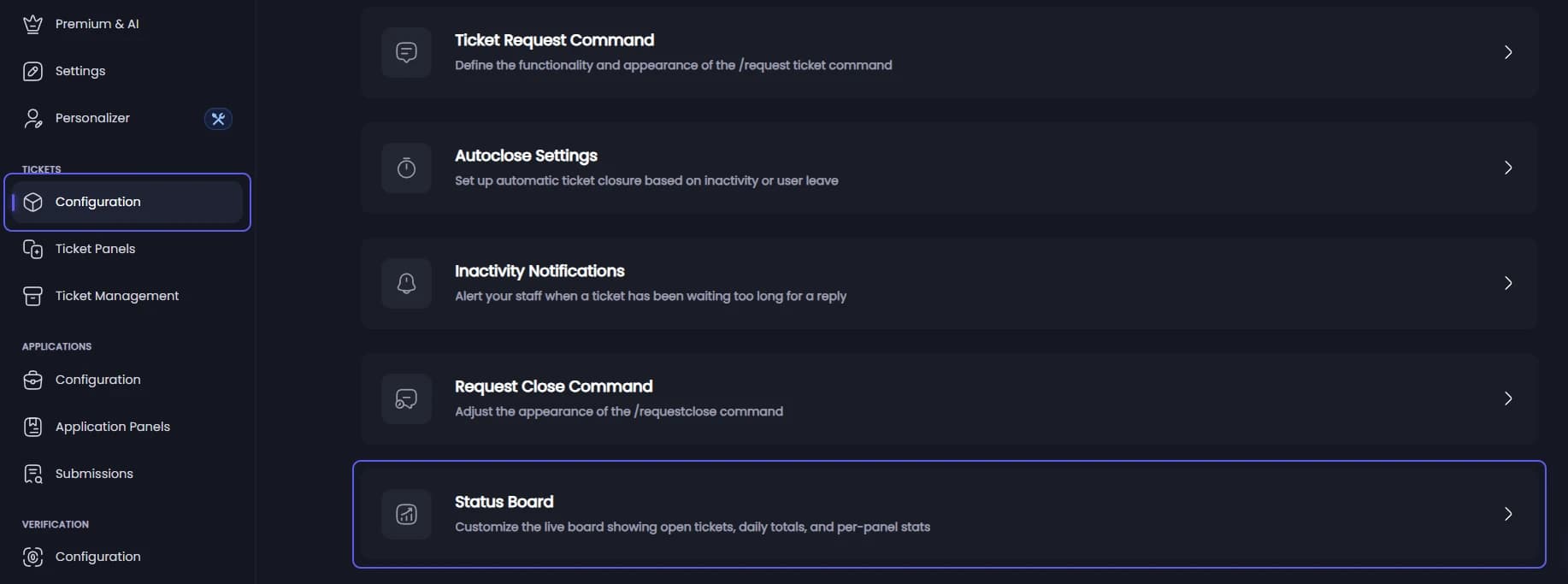
Open your dashboard and pick your server. In the sidebar, under Tickets, click Configuration, then click Status Board.
Pick what the board shows
Go to Board Content.
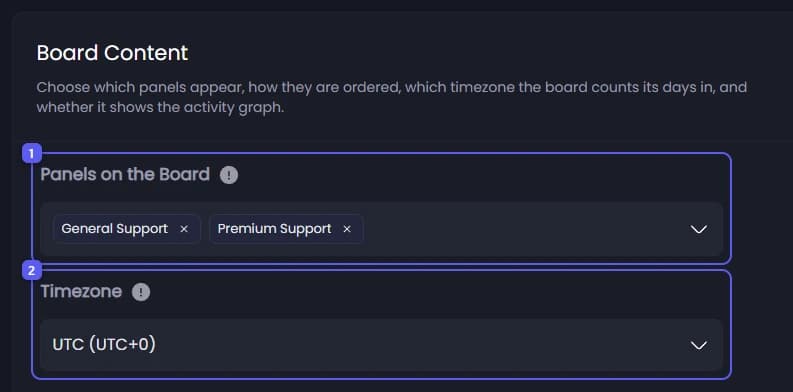
- Open Panels on the Board and pick the panels to show. Leave it empty to show all of them. Drag to set the order. Show Open Panels First, just below, is on to start with: panels that are taking tickets move to the top.
- Open Timezone and pick yours. It decides when the board's day starts, so today's totals reset at your midnight instead of UTC's.
Save
Press Save Changes in the bar at the bottom of the page. The board can only be sent once your settings are saved.
Post the board

- Open Select a channel... and pick a text or announcement channel your staff can see.
- Press Send the Board. If a board is already posted, the button says Move the Board: it posts the board in the channel you picked and deletes the old one.
In Discord, the posted board looks like this:
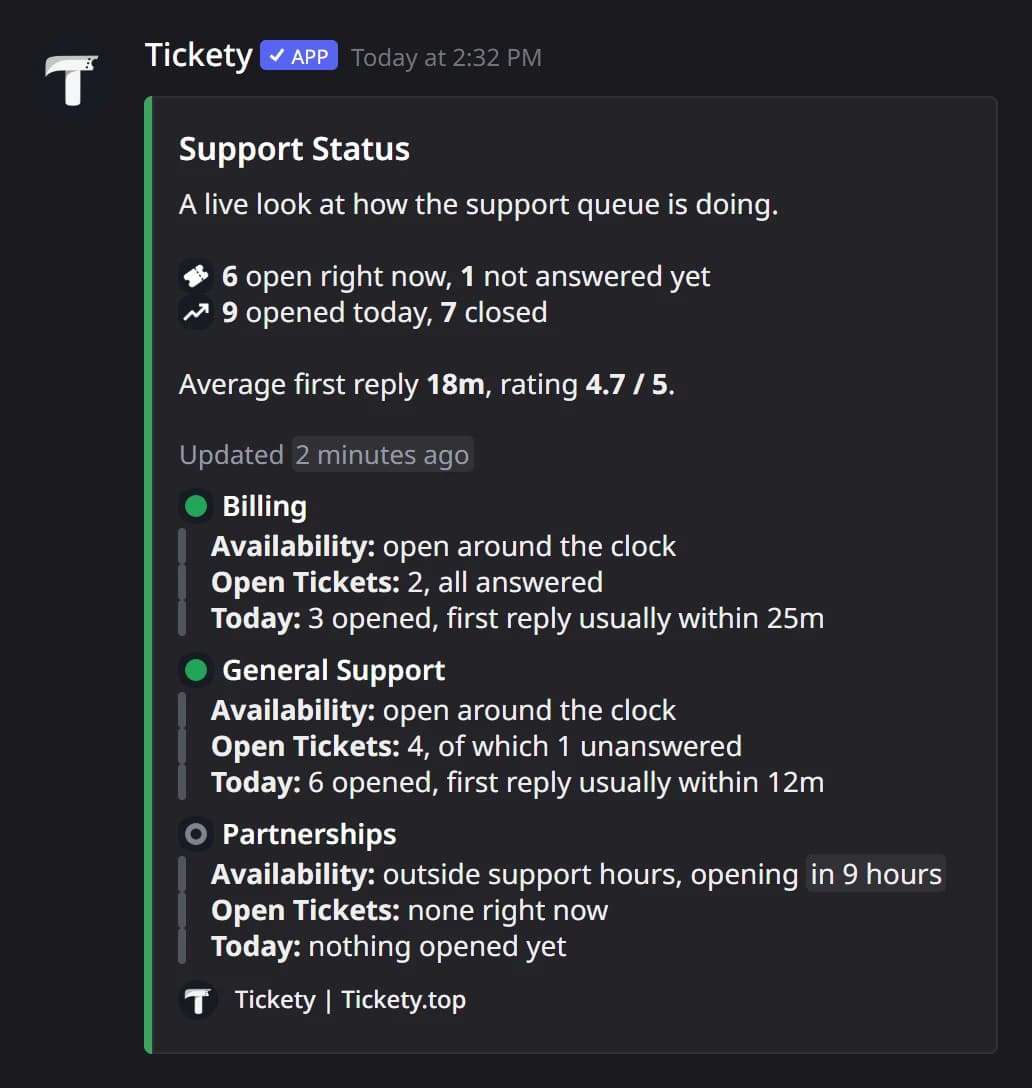
The board refreshes when a ticket opens, closes or is claimed, at most every 30 minutes, and Tickety also checks it every 30 minutes. A settings change shows up at the next refresh.
It did not work?
Staff can also post the board from Discord with /statusboard, if they have the admin role or Manage Server.