
Tickets
Change how the ticket panel looks
Edit the message members see, then its button label, emoji and colour.
The panel message is what members read in the channel, with the button they press under it. Changes here only reach Discord when you post the panel again, so this guide ends by doing that.
Open the panel
Open your dashboard and pick your server. In the sidebar, under Tickets, click Ticket Panels, then click the panel.

Go to the panel message
Click the Embed tab under the page title. The message is under Panel Message, drawn the way Discord shows it. It uses the Embeds layout: coloured boxes with a title and text.

Change the message
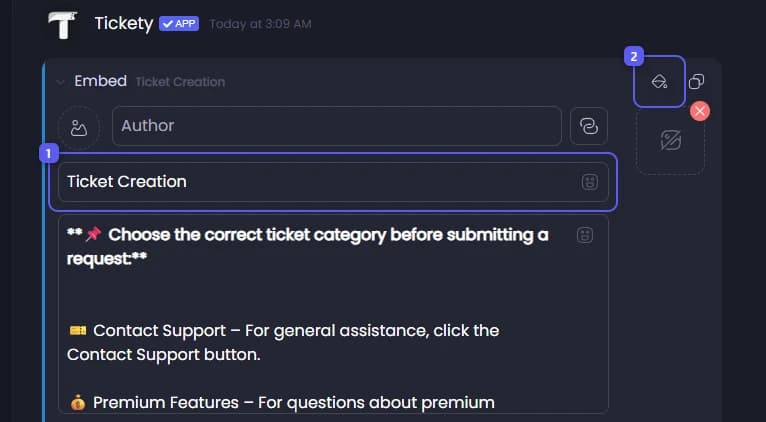
- Click the title and type your own. Then click the text below it and type what members should read. The title holds 256 characters, the text 4000.
- Press the paint bucket at the top right of the box and pick a colour for the stripe down its left side.
Style the button
Scroll down to Panel Button Style.

- Press the square under Emoji and pick an emoji. It shows before the button text.
- Type the text for the button in Label. Up to 80 characters.
- Under Color, pick one of the four colours: Blurple, Grey, Green or Red. The button starts grey. If Button Type is set to Dropdown, there is no colour to pick: a dropdown option cannot have one.
Save
Press Save Changes in the bar at the bottom of the page.
Post it

- Open Channel to post panel in... and pick the channel the panel belongs in.
- Press Send the Panel. Tickety posts a new message with the new look.
Delete the old message
In Discord, delete the old panel message, so members only see the new one.