
Server
Give a role access to the dashboard
Let a staff role open the dashboard without giving them Manage Server in Discord.
The server owner and members with the Administrator or Manage Server permission can always use the dashboard. Everyone else needs a rule under Access Control, even members with your ticket admin role.
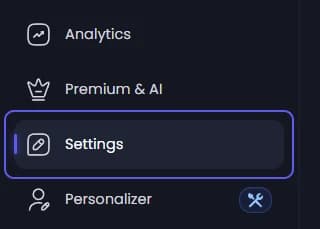
Turn access control on and add the role
Go to Access Control.
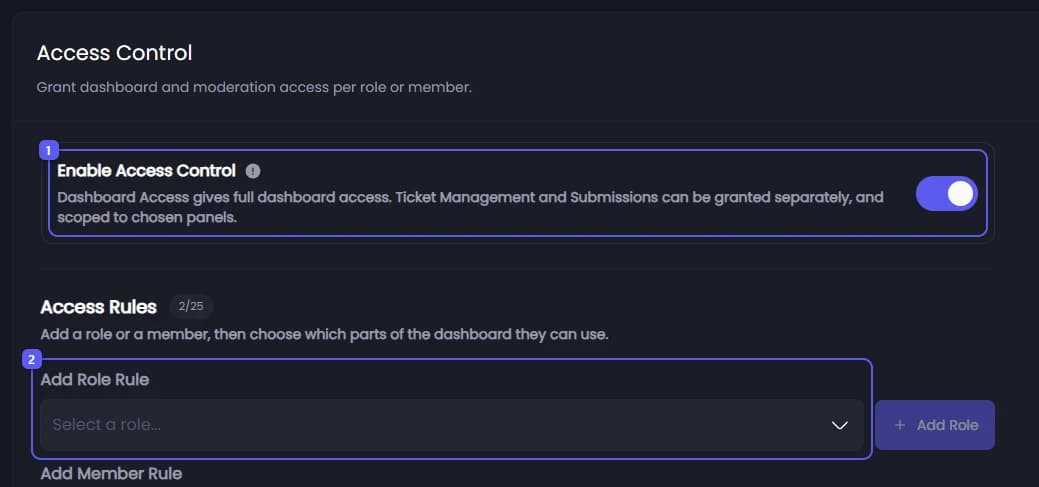
- Turn on Enable Access Control. If your server has an admin role, Tickety adds a rule for it straight away, with everything allowed.
- Under Add Role Rule, pick the role and press Add Role. To give one person access instead, search for them under Add Member Rule and press Add Member. The new rule appears in the list below.
Pick what the role may do
On the rule, switch on what they may use:
- Full Dashboard Access: every page. It switches the other three on.
- Ticket Management: read ticket history, chat live, claim and close tickets.
- Application Submissions: read and review applications.
- Giveaway Management: create, edit and set up giveaways.
Limit it to some panels
Under Ticket Management and Application Submissions, a Panels picker appears. Leave it on All panels to cover every panel, including ones you add later. Pick panels to keep the rule to those, so reviewers of one panel cannot read another.
Save
Press Save Changes in the bar at the bottom of the page.