
Set up the ticket slash commands
Choose which panels the /new command offers, and turn the request commands on.
A slash command is something members type in Discord's message box, starting with /. Tickety has two for opening tickets:
/newlets a member open a ticket without a panel message. They pick the kind of ticket from a list./request ticketlets staff ask a member to open a ticket. The member gets a DM with a Create Ticket button.
Open New Ticket Command
Open your dashboard and pick your server. In the sidebar, under Tickets, click Configuration, then click New Ticket Command.

Set up /new
Go to Command Settings.
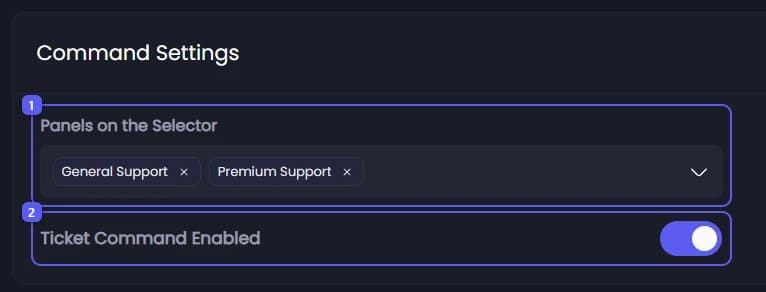
- Open Panels on the Selector and pick the panels members can choose from. If you pick none,
/newhas nothing to offer and tells members so. Up to 25 are kept. - Ticket Command Enabled is on to start with. With it off,
/newstill shows in Discord but refuses to run.
Save
Press Save Changes in the bar at the bottom of the page.
Open Ticket Request Command
In the sidebar, under Tickets, click Configuration again, then click Ticket Request Command.

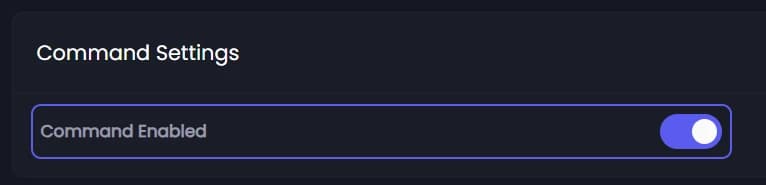
Make sure the request command is on
Under Command Settings, Command Enabled is on to start with. Ticket Request Embed, below it, is the DM the member receives.
Save
If you changed anything, press Save Changes in the bar at the bottom of the page.
To use it, staff type /request ticket and fill in user, panel and, if they want, reason. Staff can use it with the admin role, the panel's support roles, Manage Channels, or a role allowed in Command Permissions.