
Change where ticket channels are created
Move tickets to another category, or switch the panel to threads.
Each panel decides where its tickets go. By default every ticket gets its own channel inside a category. A category is a folder in your Discord channel list. Instead, a panel can open each ticket as a private thread inside one channel.
Changes apply to tickets opened after you save. Open tickets stay where they are.
Open the panel
Open your dashboard and pick your server. In the sidebar, under Tickets, click Ticket Panels, then click the panel.

Pick where tickets go
On the General tab, go to Panel Settings and Ticket Location.
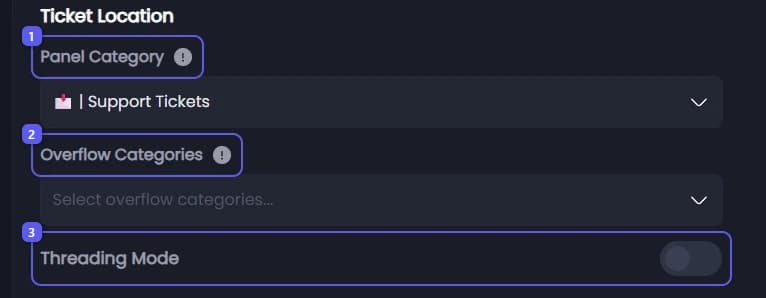
- Open Panel Category and pick the category new ticket channels go in.
- A category holds 50 channels. In Overflow Categories, pick up to 5 more. When a category is full, Tickety uses the next one, in the order you drag them. If every one is full, the ticket still opens, just outside any category.
- Or turn on Threading Mode to open each ticket as a private thread inside one channel. Threads do not use up your 50 channel slots, so a busy panel never fills a category. When it is on, Panel Category turns into Panel Channel: pick the channel the threads are made in. Archive Threads on Close also appears, and is on to start with: it archives the thread when its ticket closes.
Save
Press Save Changes in the bar at the bottom of the page.
When a ticket lands in a spare category, or in no category at all, Tickety posts a note inside the new ticket. You can turn those notes off with Overflow Warning and Overflow Failed Warning, under Tickets, Configuration, General Settings, Advanced Settings.