
Change what members can do inside a ticket
Pick the extra Discord permissions granted in ticket channels.
Every ticket channel gives its people Discord permissions, like sending messages or attaching files. Each panel sets them for three groups: the members in the ticket, the support roles, and the admin role.
Open the panel
Open your dashboard and pick your server. In the sidebar, under Tickets, click Ticket Panels, then click the panel.

Open the permissions editor
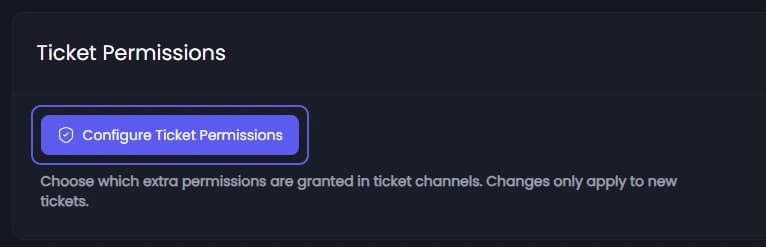
On the General tab, scroll down to Ticket Permissions and press Configure Ticket Permissions. A drawer opens from the side.
Pick the group
The drawer has three groups. On a narrow screen they are tabs at the top.
- Ticket Participants: the member who opened the ticket, and anyone added to it.
- Support Roles: this panel's support roles.
- Admin Role: your server's admin role.
Switch permissions on or off
Each group has the same ten switches: Send Messages, Read Message History, Embed Links, Attach Files, Add Reactions, Use External Emojis, Use External Stickers, Use Application Commands, Send Text-to-Speech Messages and Send Voice Messages. A new panel has every one on except the last two.
Seeing the channel is always allowed and is not in the list. Turning off Send Messages or Read Message History leaves that group unable to take part in the ticket.
Close the drawer
Press Save & Close at the bottom of the drawer. It only keeps your changes on this page. They are saved in the next step.
Save
Press Save Changes in the bar at the bottom of the page.
The new permissions apply to tickets opened after you save. An open ticket picks them up only when someone is added to it, or when it is moved or transferred.