Send ticket logs to the right channel
Set the fallback log channel once, then give a panel its own if it needs one.
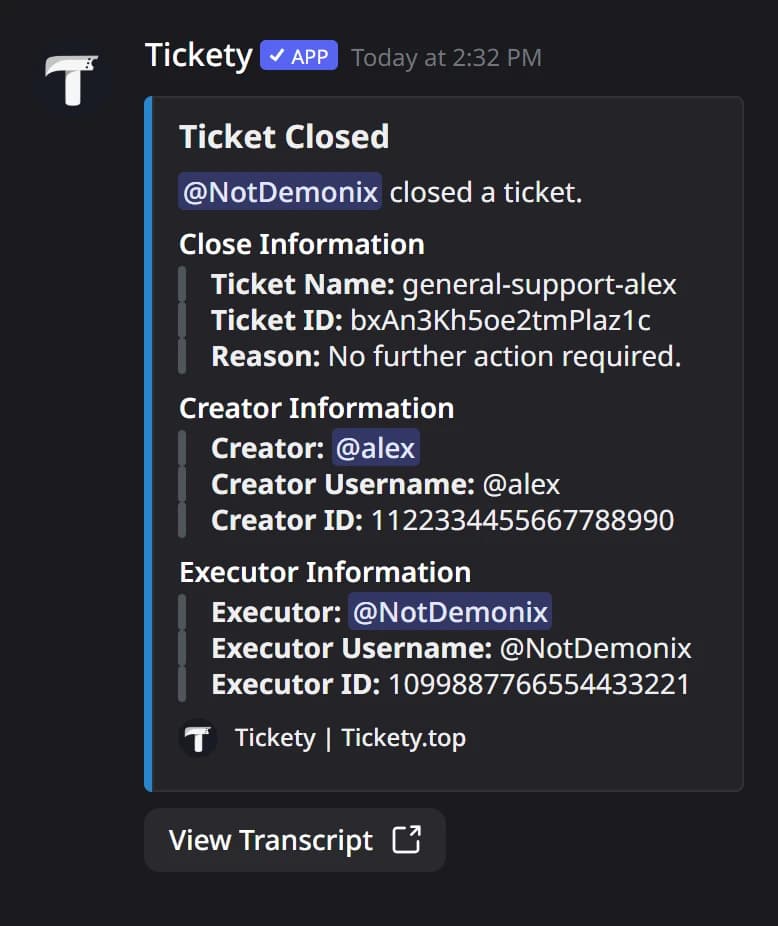
Tickety logs what happens to tickets: who opened, claimed and closed them, with a link to each transcript. Every log channel in Tickety starts on Default, which means the one channel set in Settings. Set that one, and give a panel its own channel only when its logs belong somewhere else.
Keep log channels private. Anyone who can see one can read what happens in every ticket it covers.
Pick the main log channel
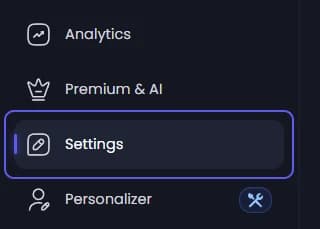
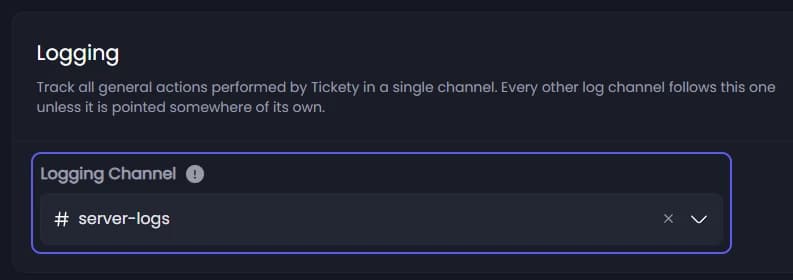
Under Logging, open Logging Channel and pick a private staff channel. Every log channel left on Default sends here.
While it is empty, the page warns you: everything on Default logs nowhere.
Save
Press Save Changes in the bar at the bottom of the page.
Open a panel
To give one panel its own log channel, in the sidebar, under Tickets, click Ticket Panels, then click the panel.

Set the panel's logs
Click the Logging tab.
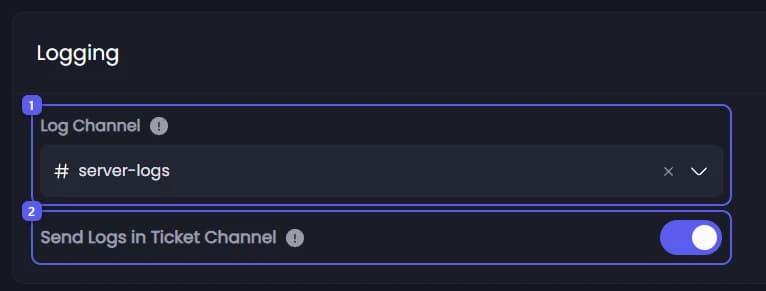
- Open Log Channel and pick a channel. The first option, Default, shows which channel it uses now. Clearing the field turns logging off for this panel. If you pick the channel the panel is posted in, a warning appears: every member there would see the logs.
- Send Logs in Ticket Channel is on to start with. It also posts short one line notes inside the ticket when it is claimed, renamed, moved and so on. It is not a replacement for the log channel: closing is only logged there.
Save
Press Save Changes in the bar at the bottom of the page.
When a ticket closes, its log entry looks like this, with a link to the transcript: