
Put several ticket types in one message
Link panels together so one message offers every ticket type, as buttons or as a dropdown.
Every option on the message is a panel of its own, with its own support roles, category and limits. So first make a panel for each ticket type, as in Create a ticket panel and post it. Then pick one of them to carry the message: the others are linked to it.
Open the panel that carries the message
Open your dashboard and pick your server. In the sidebar, under Tickets, click Ticket Panels, then click the panel whose message you want to post.


Open the linked panels drawer
Under Linked Panels, press Link Panels. If panels are already linked, the button says Manage Linked Panels. A drawer opens from the side.
Add the other panels
Under Available Panels, click each panel to add it. It moves to Linked Panels. Drag them into the order they should appear. You can link up to 20.
Each linked option uses that panel's own button text, emoji and colour, and opens a ticket on that panel.
Close the drawer
Press Save & Close. The drawer only holds your picks on this page. They are saved in step 7.
Choose buttons or a dropdown
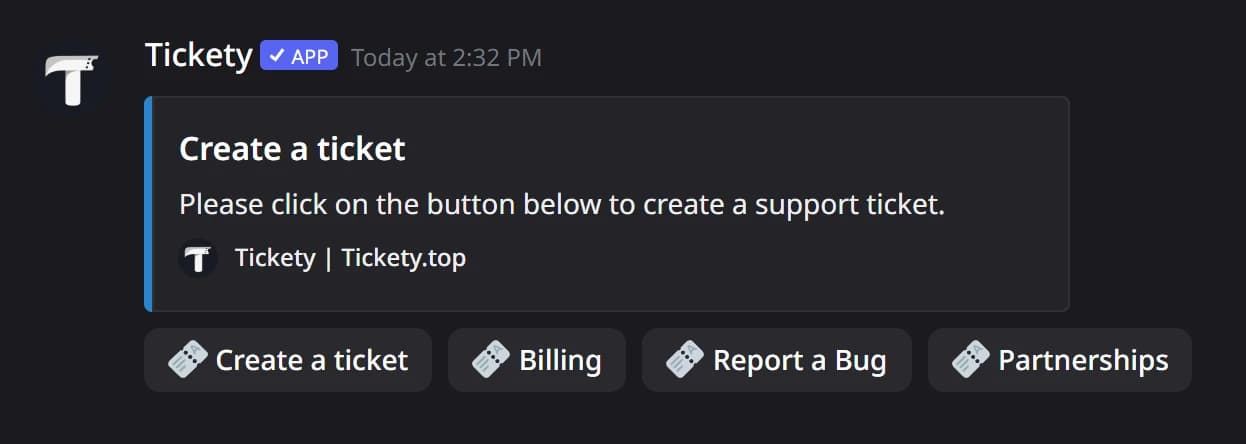
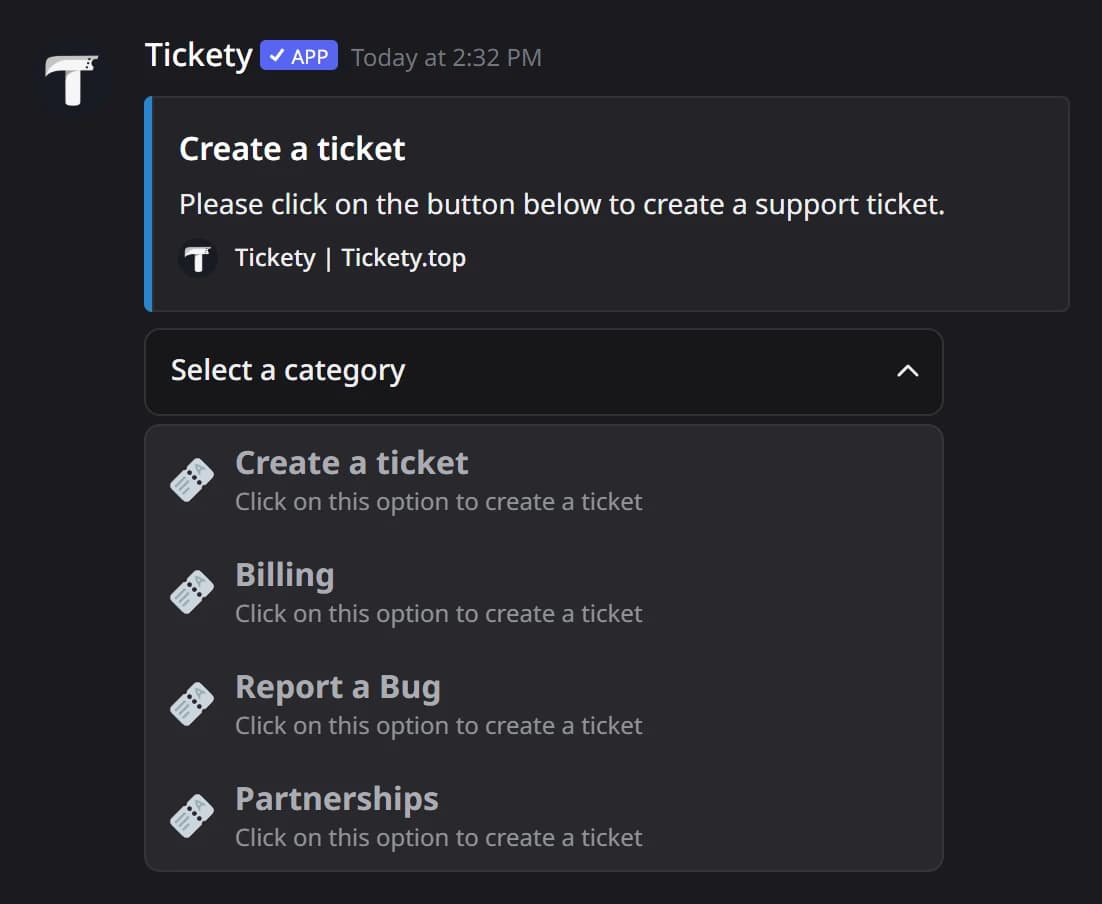
Scroll down to Panel Button Style and set Button Type. Button shows one button per panel. Dropdown shows one menu with every panel in it, where each option can have a short description under its name.
Button Type only shows while the message uses the Embeds layout.

In Discord, Button looks like the first picture and Dropdown like the second.
Save
Press Save Changes in the bar at the bottom of the page.
Post it

- Open Channel to post panel in... and pick the channel for the message.
- Press Send the Panel. The new message has every linked panel on it.
Delete the old message
In Discord, delete the old message of this panel, so members only see the new one.