
Create a FAQ panel
Write searchable questions and answers members can browse in Discord.
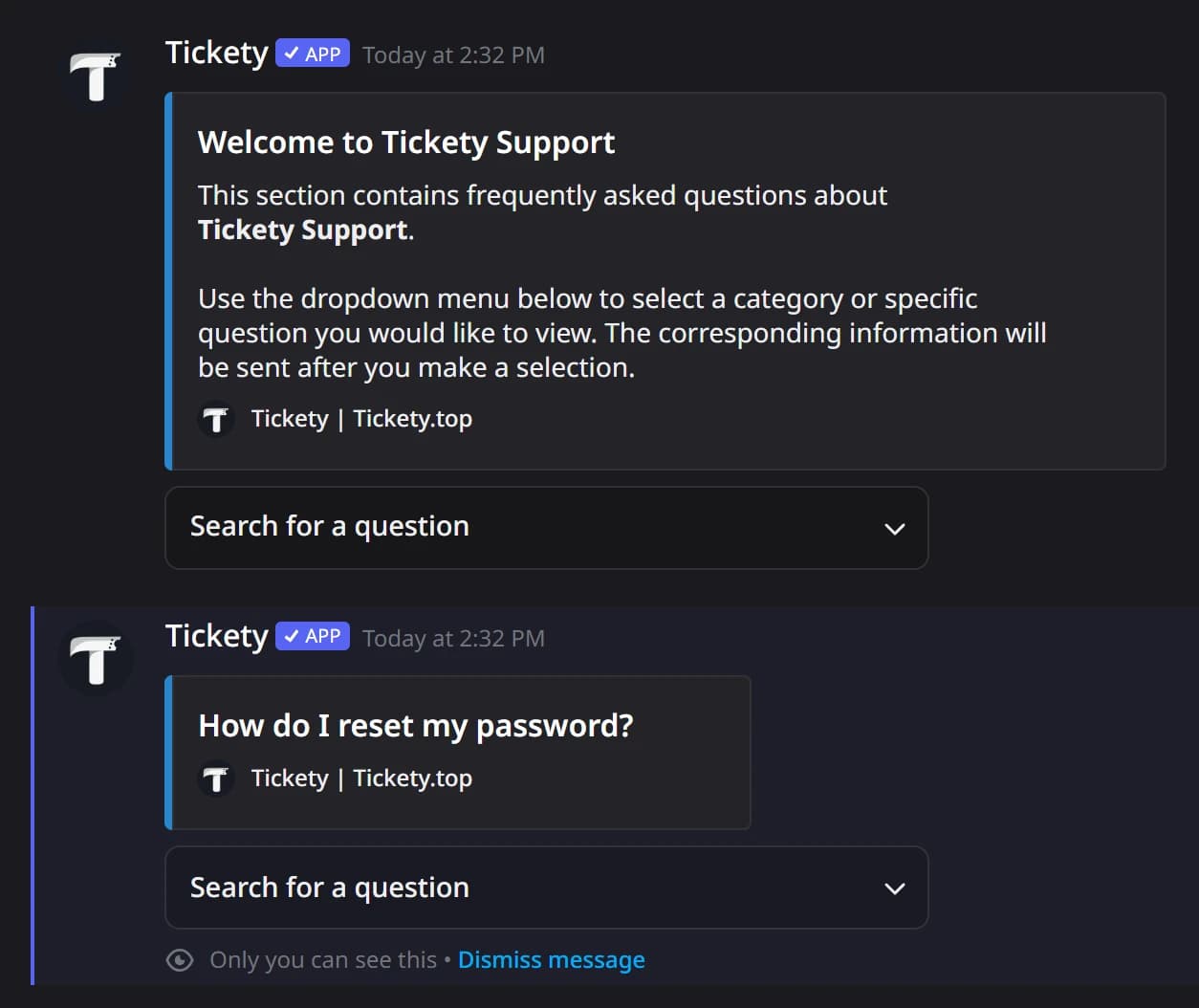
A FAQ panel is a message with a menu of questions. A member picks one and gets your answer in a message only they can see. Good answers mean fewer tickets.
Start a new FAQ panel
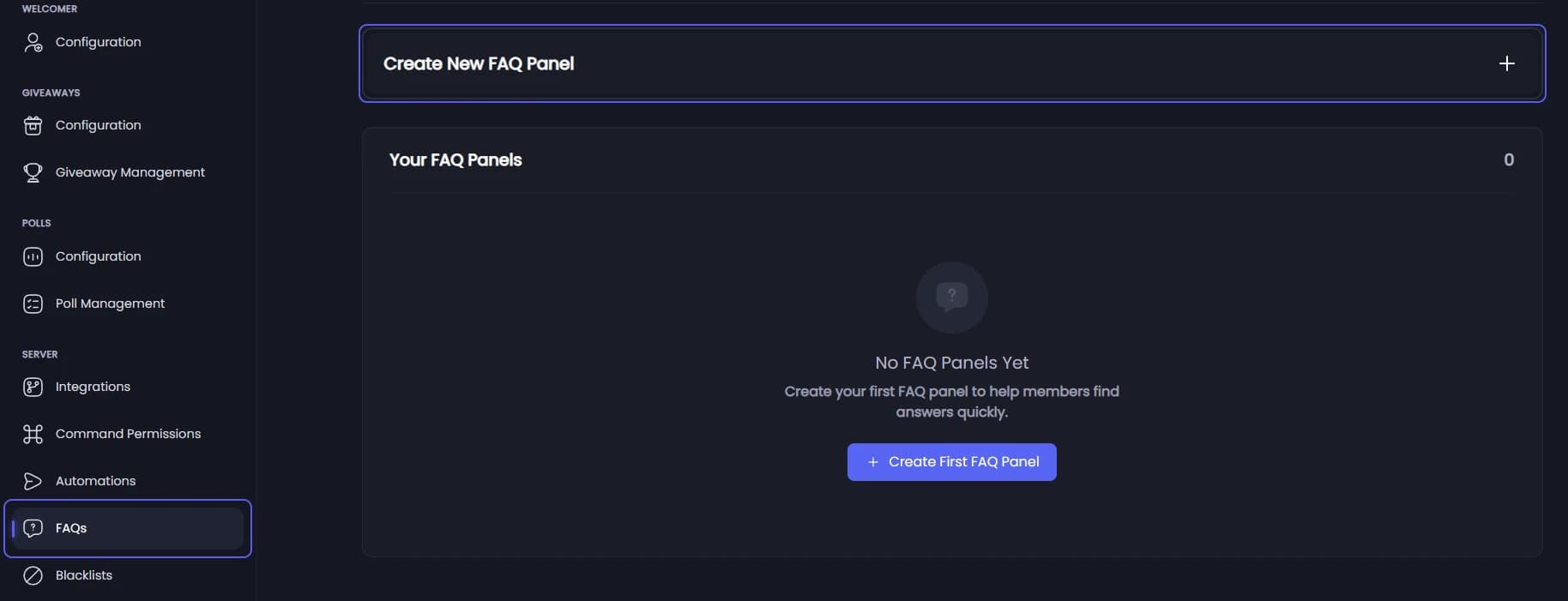
Open your dashboard and pick your server. In the sidebar, under Server, click FAQs, then press Create New FAQ Panel.
Name the panel
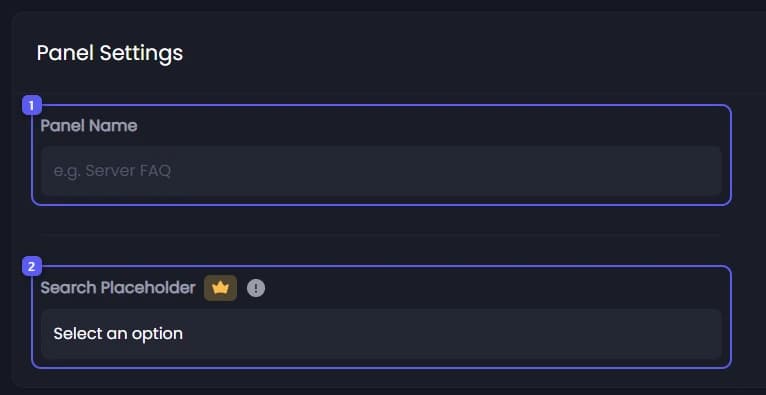
- Under Panel Settings, type a name in Panel Name, like Server FAQ. Up to 80 characters. Members do not see it.
- Search Placeholder 👑 is the grey text in the menu before a member picks.
Write the panel message
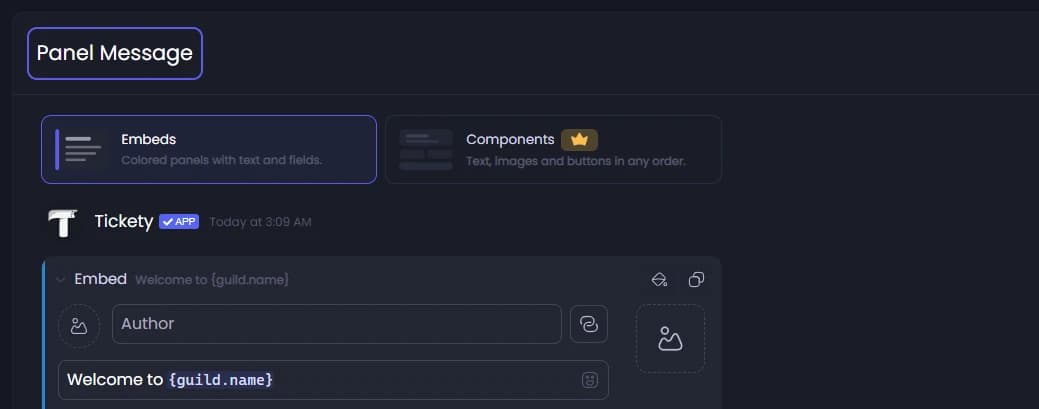
Under Panel Message, change the message shown above the menu. It starts with a welcome and tells members how to use the menu.
Write the question and its answer
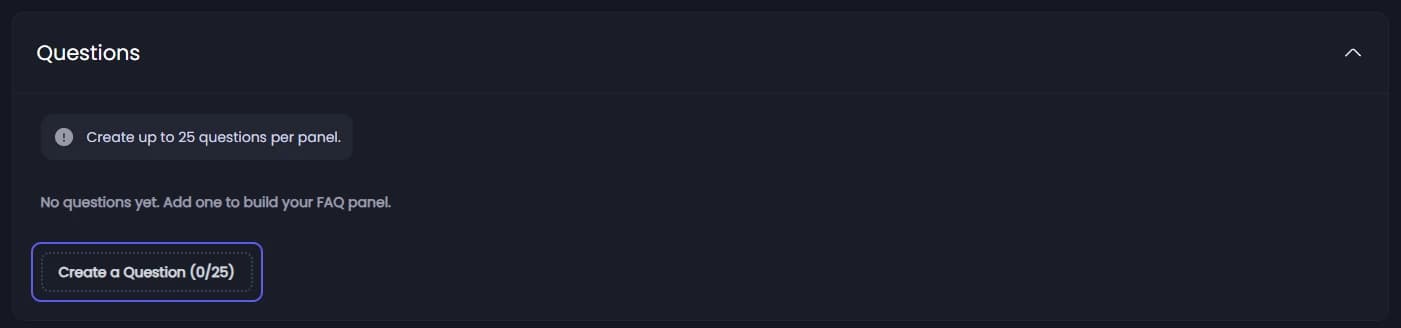
Type the question in Question, up to 100 characters, like "How do I get a role?". Pick an Emoji if you like. Then write the answer in the message editor below it. Add as many questions as you need the same way.
Add a button to an answer
Under Buttons, press Add Button to put a button under the answer. Pick what it Opens: A link, A ticket or An application.
Publish

- Open Select a channel... and pick where members should see the panel.
- Press Publish. Tickety saves the panel and posts it. Create, next to it, saves without posting.
In Discord, a member picks a question from the menu and gets the answer as a reply only they can see:
Changing an answer later updates it for everyone straight away. Adding or renaming questions changes the menu, which is part of the posted message, so press Send the Panel again and delete the old message.
To show your FAQ next to a ticket button, see Add a FAQ button to a ticket panel.
It did not work?
Features marked with a crown (👑) need a Premium Subscription.