
Set up an automatic reply
Have Tickety answer a trigger phrase, run a command, or hand out self roles.
An automation makes Tickety do something by itself: when something happens, like a member typing certain words, it sends a message and can do more after that. For self roles and suggestions there are ready made templates: see Let members pick their own roles and Collect suggestions members can vote on.
Start a new automation
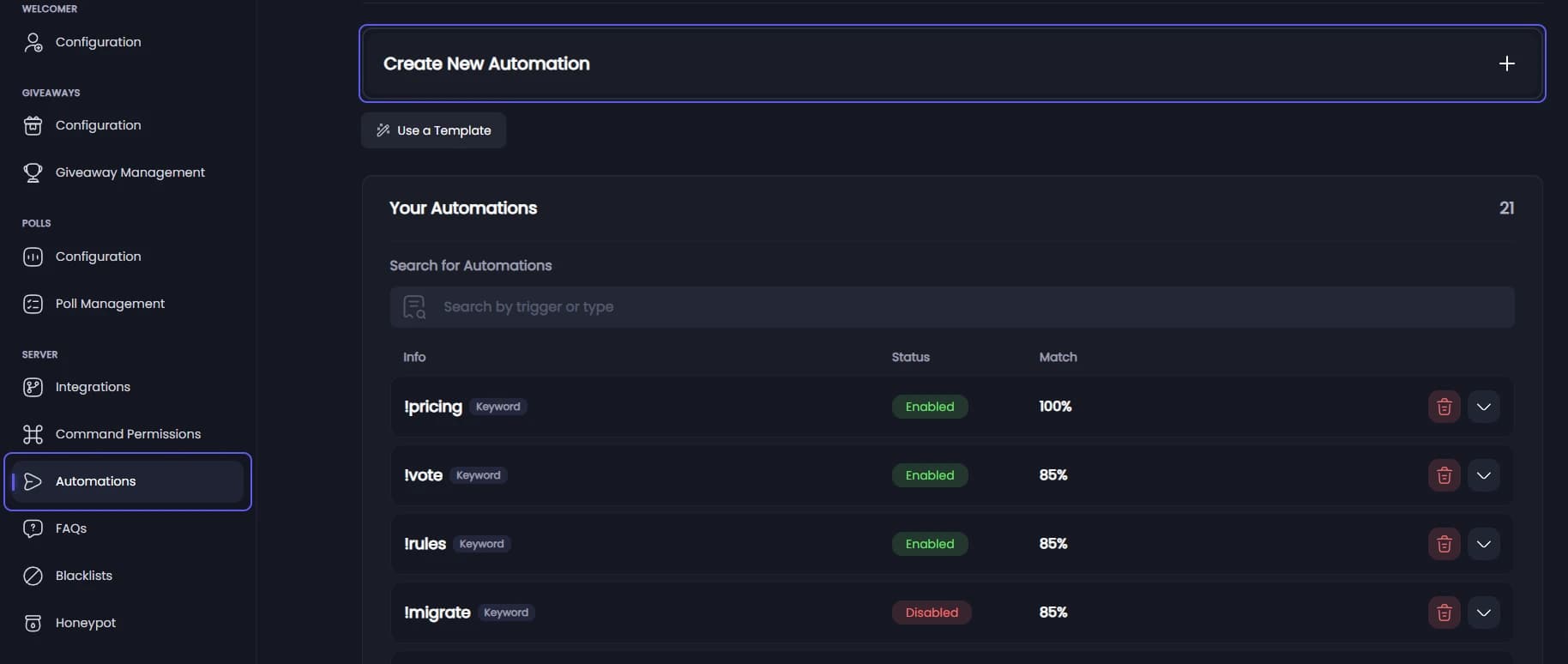
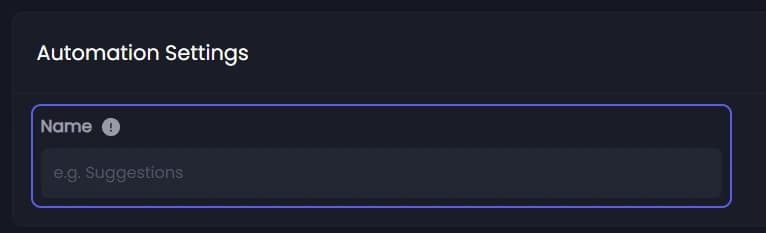
Open your dashboard and pick your server. In the sidebar, under Server, click Automations, then press Create New Automation.
Pick what sets it off
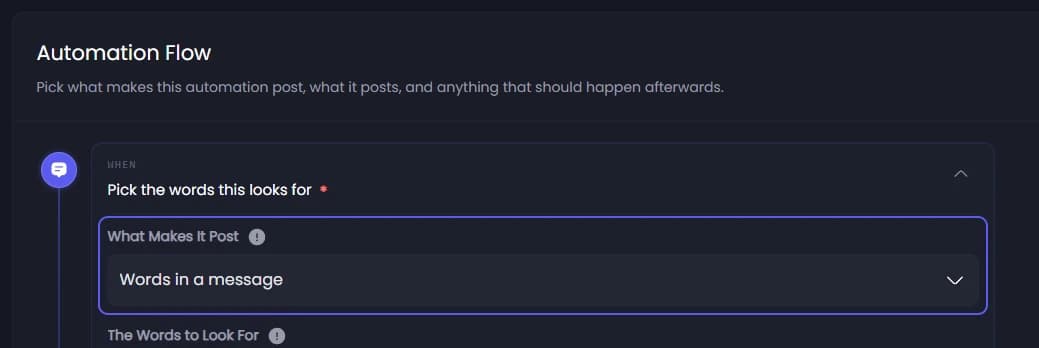
Under Automation Flow, open What Makes It Post and pick one. The most common:
- A message like this one: a member writes something close to your sentence. This is the default.
- Words in a message: a member's message has one of your words in it.
- A command: a member types something like
!rules. - Any message in a channel: every message in the channels you pick.
- Someone joins the server.
Fill in the trigger
Type the command in the box that appears, or add your words to The Words to Look For, pressing enter after each one. For A message like this one, Trigger Match Percentage sets how close a message has to be, starting at 85. For Any message in a channel, pick the channels in Channels to Watch.
Write the reply
A Send a message step is already in the flow. Type the reply in The Message, up to 2000 characters.
Pick where it posts
Under Where It Posts, keep Reply where it fired to answer under the member's message, or pick Post to a channel.
Add more steps
Press Add a step to do more when it fires, like deleting the member's message or giving a role.
Create it
Press Create at the top of the page. It starts working straight away. Later changes are saved with Save Changes in the bar at the bottom.
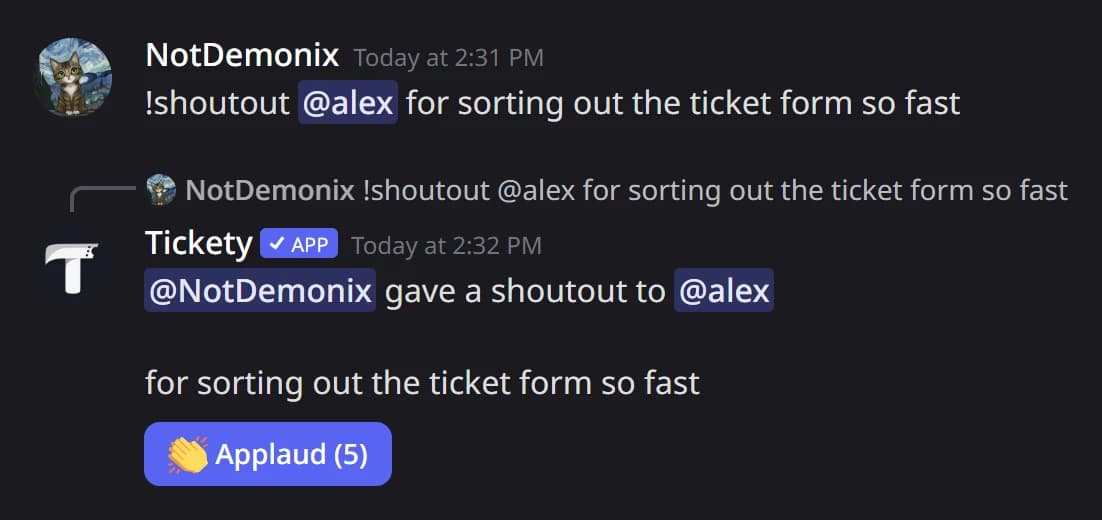
In Discord, an automation that answers a command looks like this:
It did not work?
For every trigger, step and setting, see the automation reference.