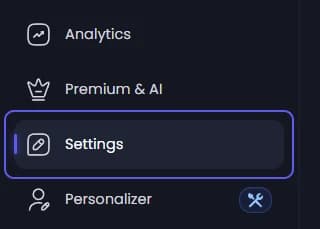
What permissions are needed to access the dashboard?
Exact behavior for dashboard access, including Manage Server, Administrator, Owner, and Dash Access Control rules.
If you want the short version: dashboard access is decided by Discord permissions first, then by Access Control + role mappings.
Access Control has only 3 permissions: Dashboard Access, Ticket Management, and Submissions.
Access Map (Quick Reference)
| Permission | What it unlocks |
|---|---|
Dashboard Access | Full dashboard pages and configuration routes |
Ticket Management | Ticket management routes/actions |
Submissions | Application submissions routes/actions |
How the Dashboard Decides Access
Check Discord Full-Access Permissions
User gets full dashboard access immediately if they are:
- Server Owner
- Have Discord Administrator
- Have Discord Manage Server
Resolve Role-Based Access
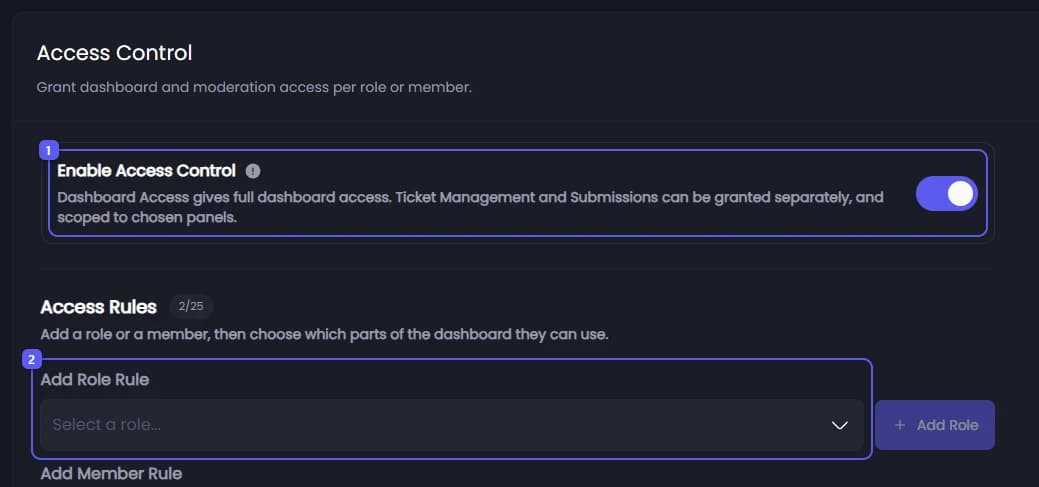
If the user doesn't have full access from Discord permissions, role-based access is only resolved when Access Control is enabled.
When enabled, matched roles can come from:
- Access Control role rules
- Ticket support roles (for panel scope)
- Application reviewer roles (for panel scope)
- The Admin Role (for unrestricted panel scope)
If Access Control is disabled, this step is skipped entirely and the user has no access.
Apply the 3 Access Permissions
The dashboard applies permissions as follows:
Dashboard Accesscontrols full dashboard/configuration access.Ticket Managementcontrols ticket-management access.Submissionscontrols submissions access.
Apply Panel Scope Rules
For tickets/submissions, panel scope is applied after permission checks:
- The Admin Role can make scope unrestricted (all panels) for tickets/submissions.
- Support/reviewer role access is restricted to assigned panels.
- No matching panel access means no visible logs/submissions data.
Access Control ON vs OFF
- Access comes from Access Control role-rule toggles.
- User must match role rules that grant the needed permission (
Dashboard Access,Ticket Management, orSubmissions). - The Admin Role gets unrestricted panel scope (all panels) but is not a separate dashboard permission on its own.
- All role-based access is disabled. No Access Control rules, support roles, reviewer roles, or Admin Role grant any dashboard access.
- Only Discord permissions grant access: Server Owner, Administrator, or Manage Server.
- Users without one of those Discord permissions cannot open the server in dashboard at all.
When Access Control is enabled, Tickety auto-adds the current Admin Role with all 3 toggles ON as a starter rule. You can edit or remove it.
How do I customize pings in the Welcome Message?
To disable pings in the welcome message for Tickety, follow these steps
Minimal Role Permissions (No Admin Required)
These are the minimal permissions that must be assigned to the @Tickety Bot role for the bot to function properly without Admin permissions.