
Set up verification
Make new members prove they are human, hand out a verified role, and punish the ones who never pass.
Verification holds new members back until they press a Verify button and pass a check. Until then they only have an unverified role, which you use to hide your channels. When they pass, they get your verified roles instead.
Two things to know first:
- Tickety can only give and take roles below its own. In Discord, open Server Settings, then Roles, and drag Tickety's role above every role you use here.
- Verification only affects members who join after you turn it on. Members already in your server are left as they are.
Open Verification
Open your dashboard and pick your server. In the sidebar, under Verification, click Configuration.
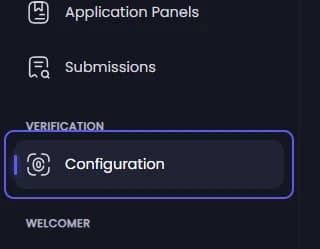
Turn verification on and pick how members verify
Under General Settings:
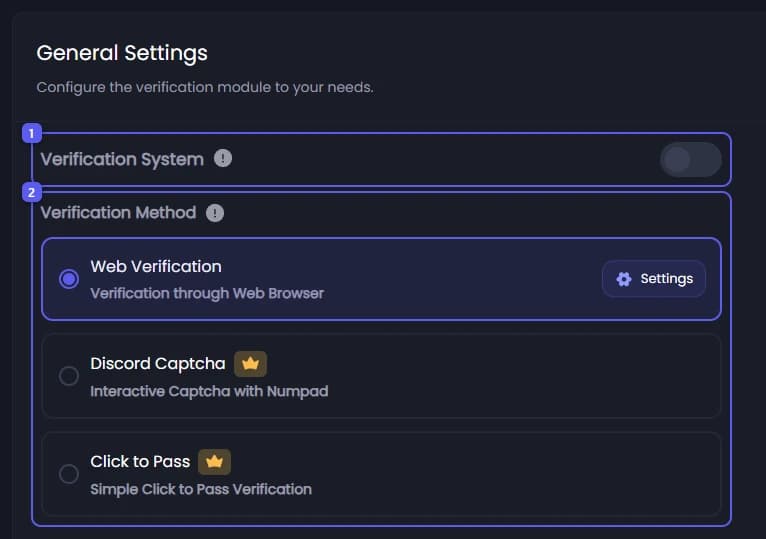
- Turn on Verification System.
- Under Verification Method, pick one:
- Web Verification: the member opens a link and passes a captcha, a small puzzle for humans, in their browser. Free.
- Discord Captcha 👑: the member types a code from a picture on buttons inside Discord.
- Click to Pass 👑: the member only presses one more button. It keeps people behind the unverified role until they act, but stops nobody.
Turn on punishments
Under Punishment Settings, turn on Punishments to act on members who never pass. The settings below appear once it is on.
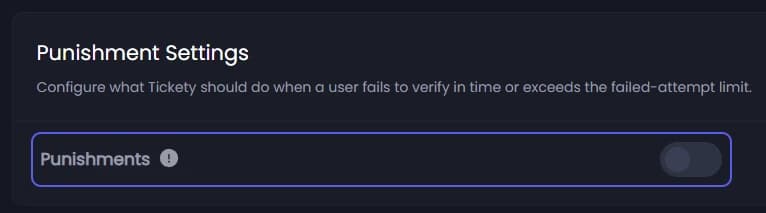
Set when it happens
Set Grace Period: how long after joining a member may stay unverified. Or set Max Failed Attempts: how many failed tries end it straight away, up to 50. You can use both, but at least one has to be set.
Pick what happens
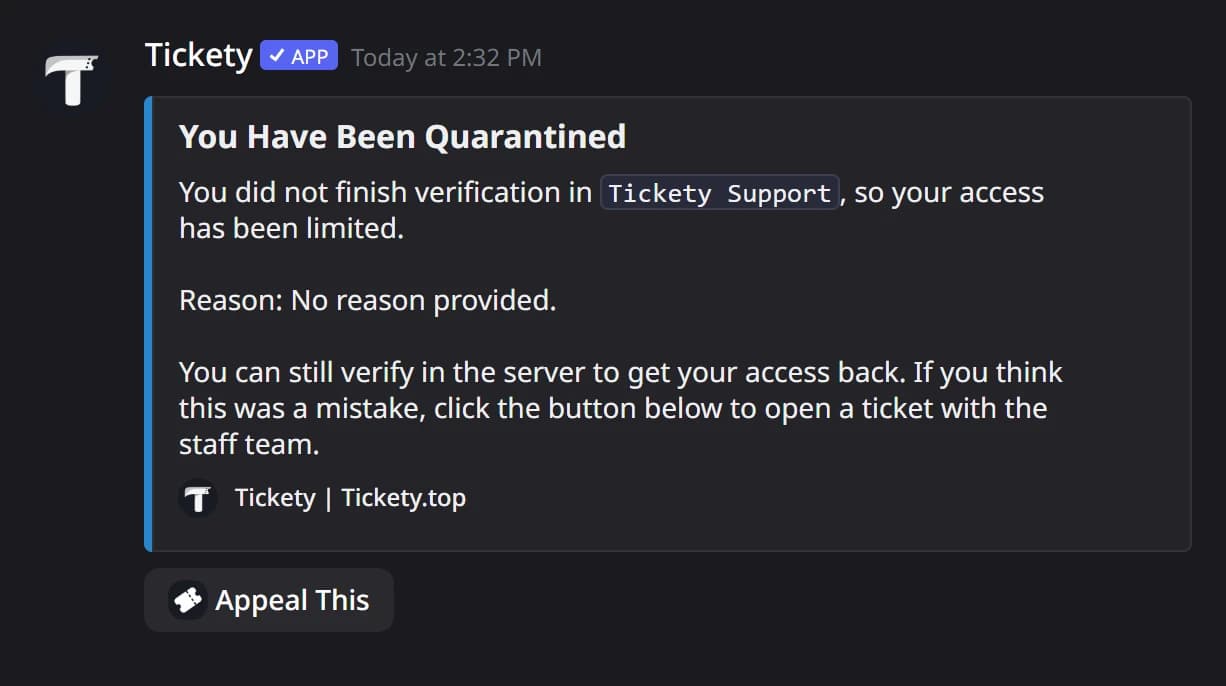
Under Punishment Action, pick Kick, Ban, Role Actions or Quarantine. Quarantine swaps their roles and sends them a DM with a button to appeal in a ticket, on the panel you pick in Appeal Panel. Type the reason members see in Reason.
The quarantine DM looks like this:
Pick the roles
Under Role Management:
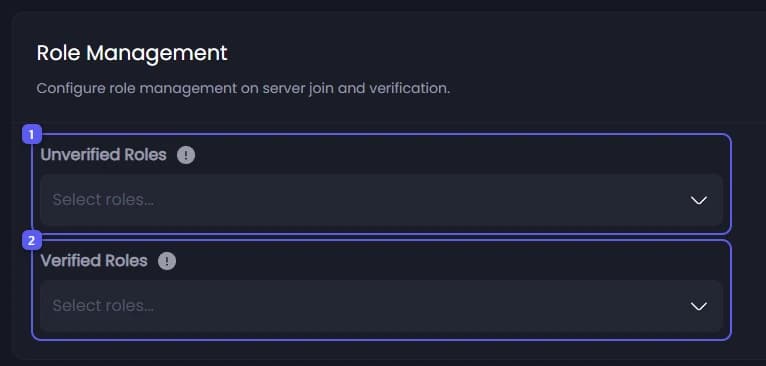
- Open Unverified Roles and pick the roles new members get when they join. Tickety removes them when the member passes.
- Open Verified Roles and pick the roles members get when they pass.
Save
Press Save Changes in the bar at the bottom of the page. The panel cannot be sent while there are unsaved changes.
Post the panel
At the top of the page:

- Open Select a channel... and pick the channel new members should start in. Make sure unverified members can see it.
- Press Send the Panel.
Tickety posts a message with the Verify button:
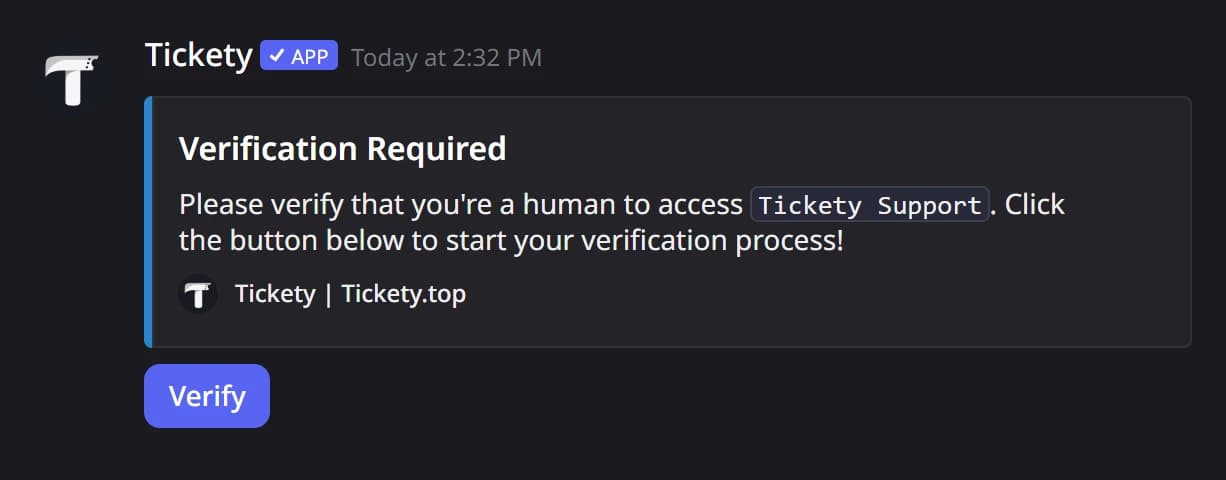
When a member passes, they also get your success message. With Web Verification it arrives as a DM, so a member with closed DMs still gets their roles, just not the message.
It did not work?
To make verification harder to fool, see Tighten verification against alts and bots.
Features marked with a crown (👑) need a Premium Subscription.