
Create a poll
Set who can vote and how, then open the poll itself.
A poll is a question with answers members vote on. The settings on Configuration apply to every poll, including polls already running. Each poll then gets its own question, answers and schedule.
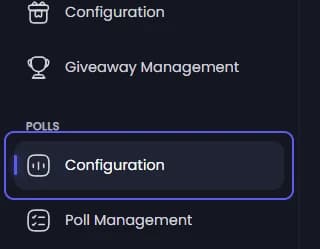
Open poll Configuration
Open your dashboard and pick your server. In the sidebar, under Polls, click Configuration.
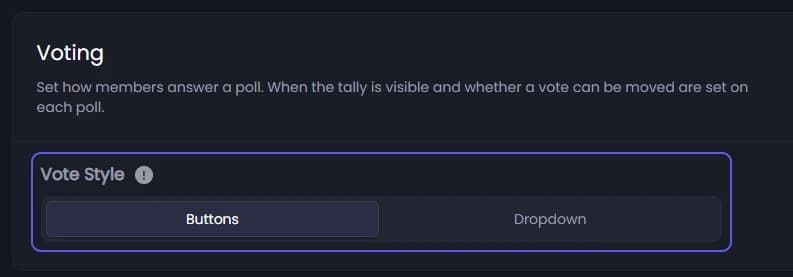
Pick how members vote
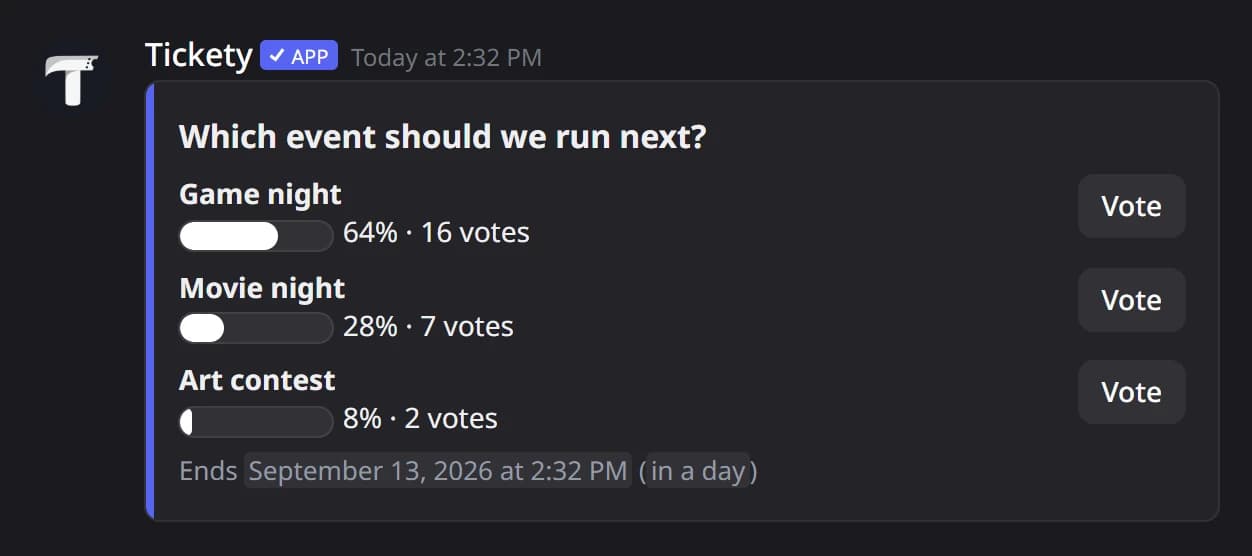
Under Voting, pick a Vote Style. Buttons puts a vote button next to each answer, and fits up to 18 answers. Dropdown puts the answers in one menu, and fits up to 25.
Set who may vote
Under Vote Requirements:
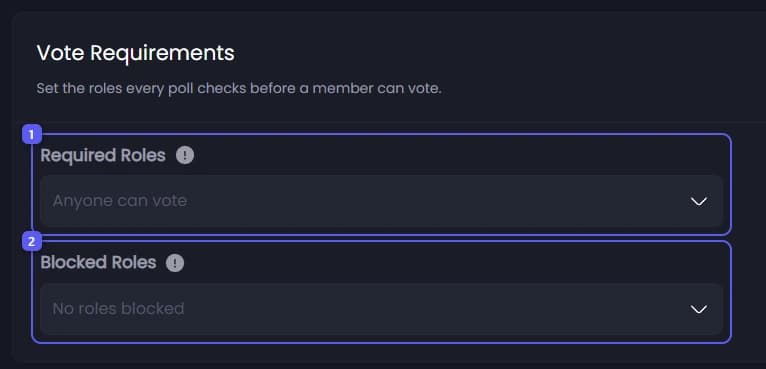
- Open Required Roles and pick the roles a member needs to vote. Leave it on Anyone can vote to let everyone in.
- Open Blocked Roles and pick roles that may never vote. A blocked role wins over a required one.
Save
Press Save Changes in the bar at the bottom of the page.
Start a new poll
In the sidebar, under Polls, click Poll Management, then press Create New Poll. A form opens, one step at a time.

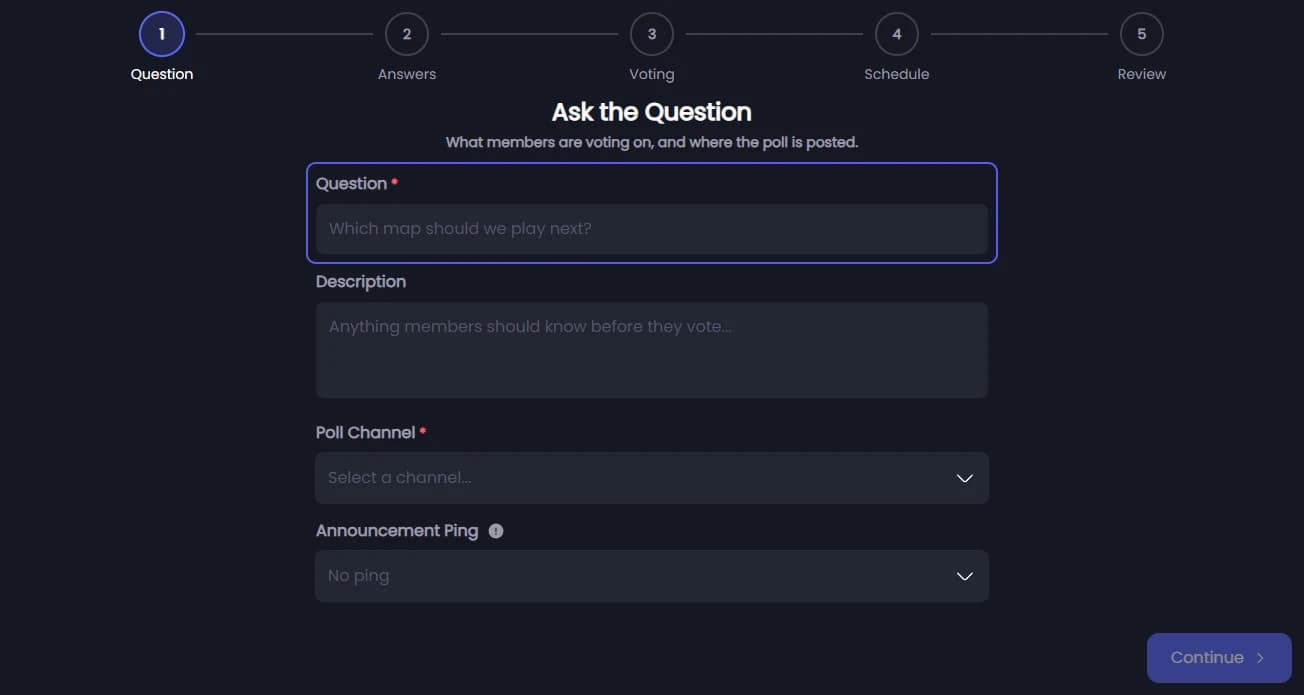
Ask the question
On the Question step, type the Question, up to 256 characters, and pick the Poll Channel it is posted in. Description and Announcement Ping are there if you want them. Press Continue.
Add the answers
On the Answers step, type at least two answers. Press Add Answer for more. Press Continue.
Decide how voting works
On the Voting step, the roles start with your defaults. Allow Vote Changes is on, so members can change their vote. Anonymous Voting hides who voted for what. Results Visibility 👑 can hide the results until someone votes or the poll closes, and Votes Per Member 👑 lets members pick more than one answer. Press Continue.
Pick when it runs
On the Schedule step, pick Post It Now or Post It at a Time, then how long it Runs For. Repeat This Poll posts it again on a schedule. Press Continue.
Create it
On the Review step, check the summary and press Create Poll. Once it is posted, it looks like this in Discord:
It did not work?
Features marked with a crown (👑) need a Premium Subscription.