Autoresponders
Set up messages that automatically trigger a response from Tickety.
The Autoresponders page allows you to create and manage automated responses that trigger when users send specific messages. This feature helps streamline communication by automatically replying to frequently asked questions or common queries, improving efficiency in your Discord server.
Access the Web Dashboard
Open your Tickety Dashboard. Log in using your Discord Account.
Navigate to Autoresponders
-
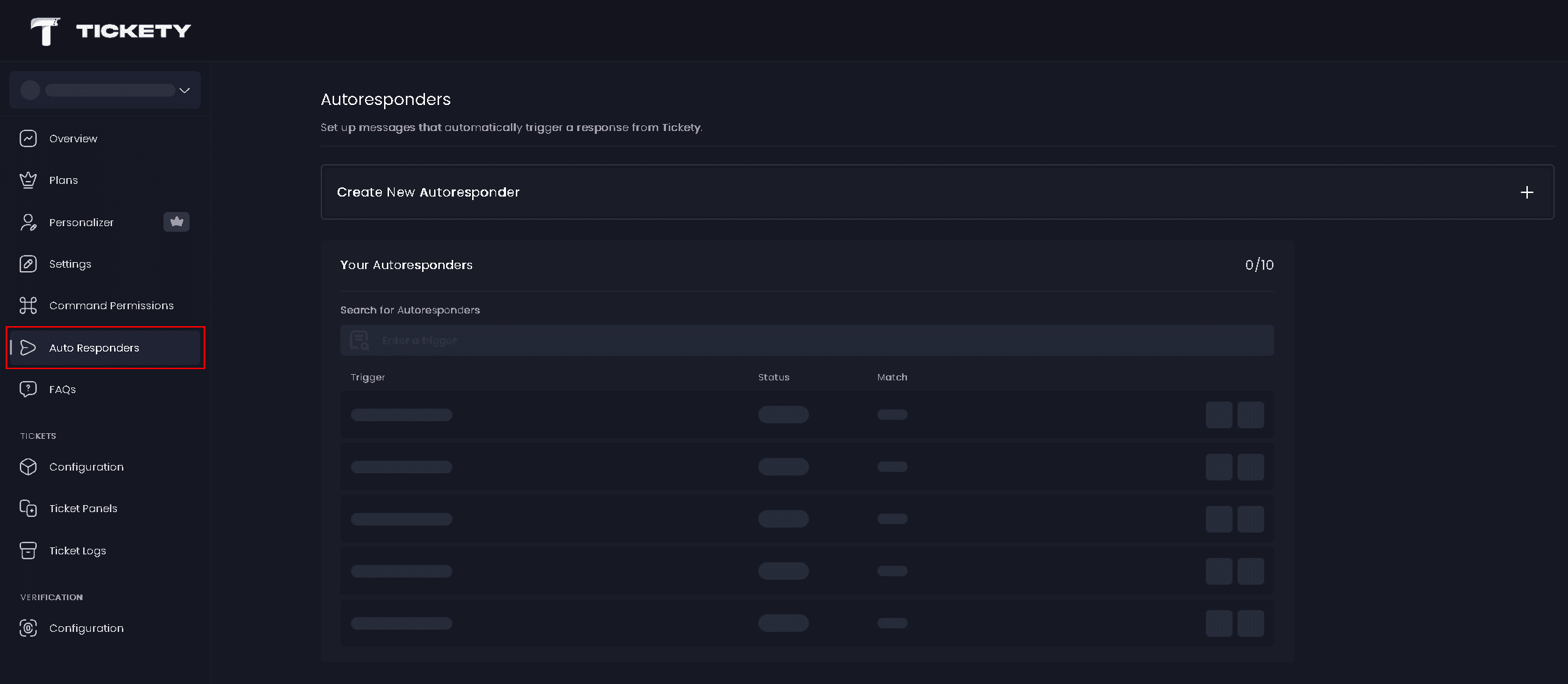
Once logged in, locate and click on "Auto Responders" in the sidebar.
-
You will see the Autoresponders page with options to create and manage your autoresponders.
Your Autoresponders
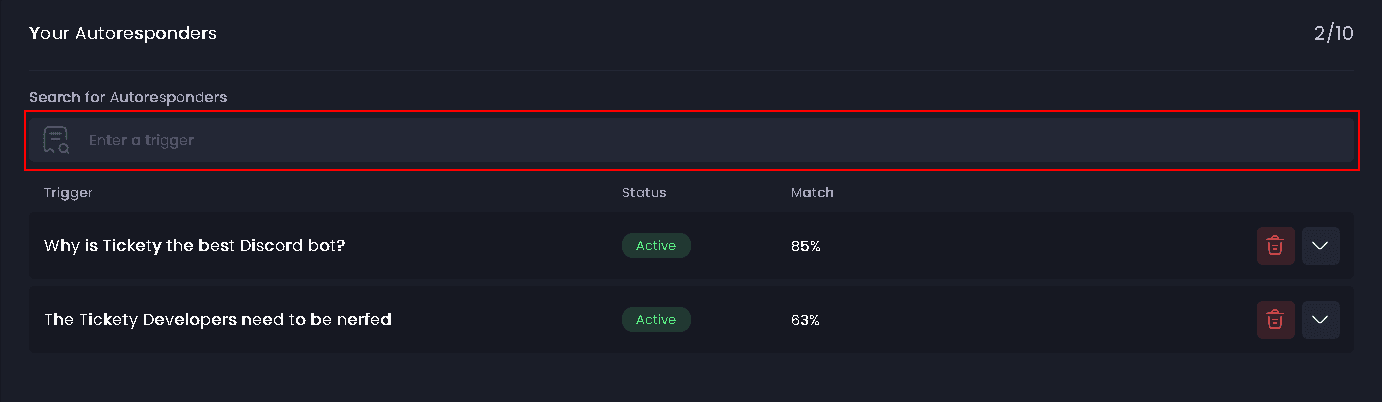
View and manage all your created autoresponders. The page displays how many autoresponders you have created out of your total limit.
Free users can create up to 5 autoresponders. Premium users get unlimited autoresponders. Visit the Premium Page for more information.
Search for Autoresponders
Use the search functionality to quickly locate existing autoresponders by entering a keyword or phrase.
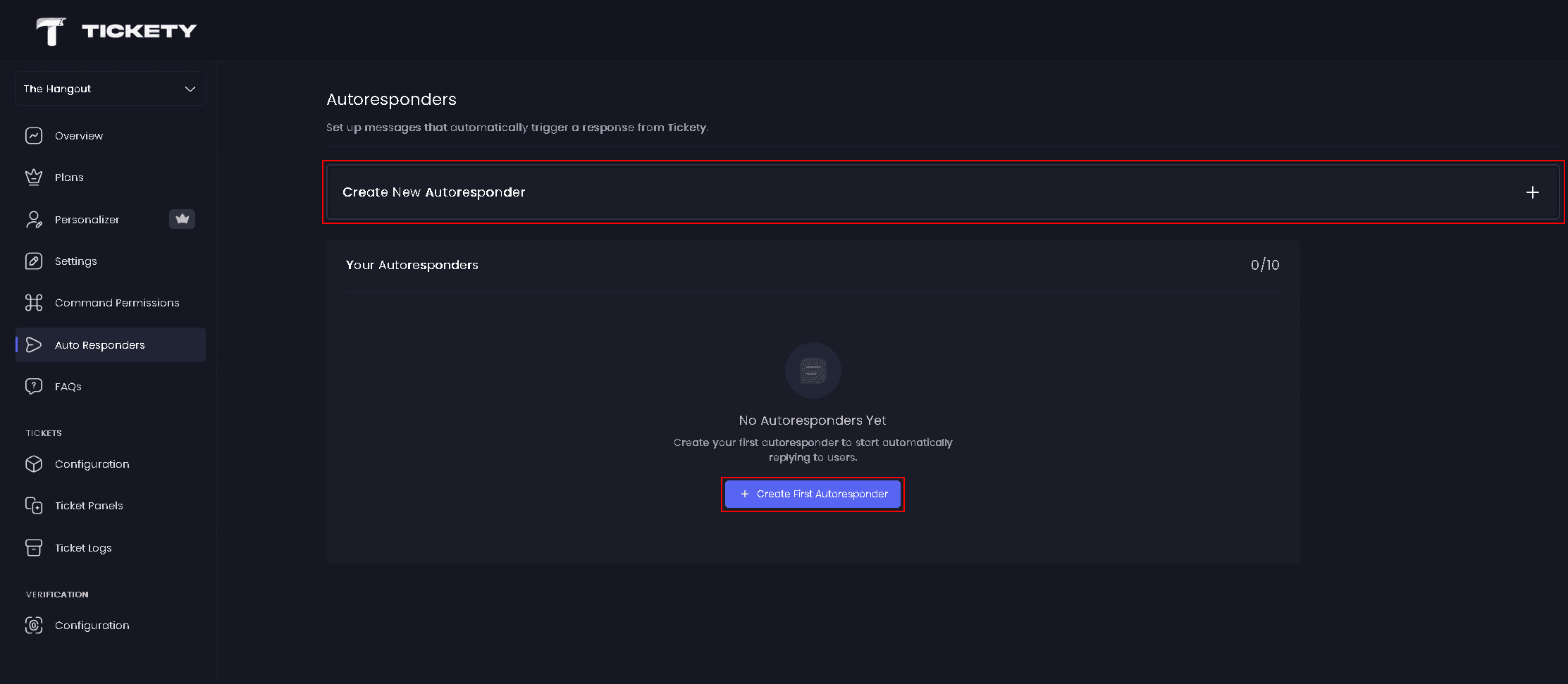
Create New Autoresponder
Click the "Create New Autoresponder" button or card to start creating a new autoresponder. You can set up customized responses that will automatically trigger based on specific messages or patterns.
Autoresponder Settings
When creating a new autoresponder, configure the trigger settings:
-
Trigger Pattern - Define the exact phrase or question that will activate the autoresponder. You can use:
- Text - Simple text matching
- Regex - Advanced pattern matching using regular expressions
-
Trigger Match Percentage - Set the percentage of similarity required for the autoresponder to activate (using a slider)
-
OCR Trigger Detection 🤖 - When enabled, detects text in the first uploaded image and triggers the autoresponder if it matches the trigger pattern
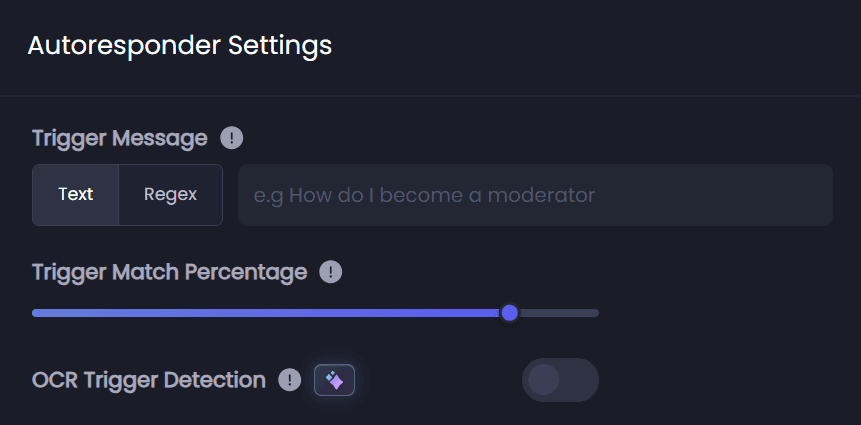
The OCR Trigger Detection feature requires AI Credits (head to our plans page to purchase).
Conditions
Configure when and where the autoresponder should respond:
-
Ignored Channels - Select channels where the autoresponder should not reply
-
Allowed Channels - Select the only channels where the autoresponder should reply
-
Only Reply in Tickets - When enabled, the autoresponder will only respond within ticket channels
-
Required Roles 👑 - Restrict the use of the autoresponder to users with a certain role
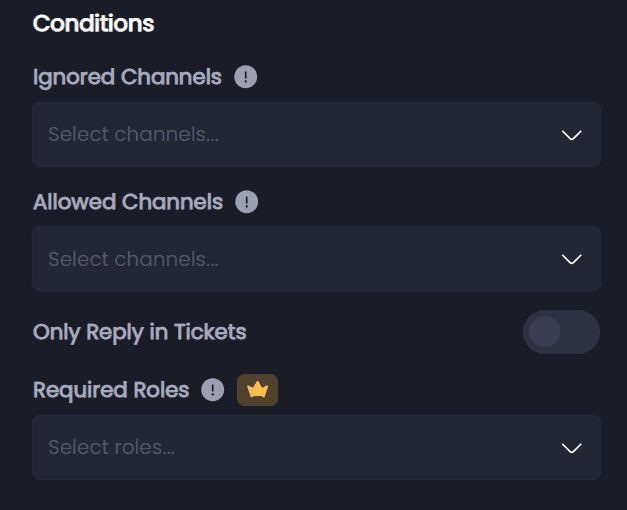
The Required Roles feature requires a Premium Subscription.
Actions
Configure what happens when the autoresponder is triggered:
-
Delete Trigger Message - When enabled, automatically deletes the message that triggered the autoresponder

Autoresponder Reply
Customize the reply message that will be sent when the autoresponder is triggered. You can create:
- Normal Reply - A plain text message
- Embed Reply - A structured response using a Discord embed with customizable:
- Message Content - Add text content that appears above the embed
- Author (with icon and URL)
- Embed Title
- Embed Description
- Images (Thumbnail and Large Image)
- Footer (with icon)
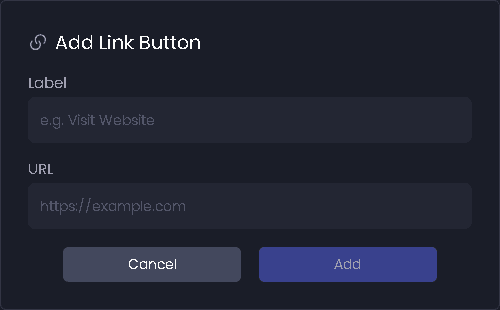
Link Buttons
Add interactive buttons to your autoresponder reply. You can add link buttons that redirect users to external URLs when clicked.
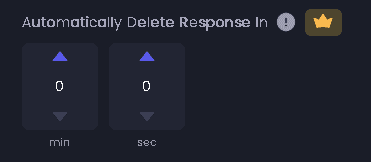
Automatically Delete Response In 👑
This feature requires a Premium Subscription.
Set a timer to automatically delete the autoresponder's reply after a specific duration. Configure the time in:
- Seconds - Set delay in seconds
- Minutes - Set delay in minutes
- Hours - Set delay in hours
Set any field to 0 to disable automatic deletion for that time unit.