Ticket Panel Configuration
Complete guide to creating and configuring ticket panels in your Discord server.
Prerequisites
Before proceeding, please ensure the following;
- You have
Manage Serverpermissions or higher. - You have invited and configured the Basic Settings from the beginning of this whole guide.
- You have knowledge of managing and configuring a Discord server's permissions and settings.
Ticket panels allow users to create private support channels or threads in your Discord server. This guide covers both the quick setup wizard for easy panel creation and the comprehensive manual configuration options available in the panel editor.
Setup Wizard
The setup wizard provides a streamlined way to create a ticket panel with essential settings. You can always modify these settings later in the panel editor.
Access the Setup Wizard
-
Go to the Tickety Dashboard
-
Click
Managefor the server you want to configure -
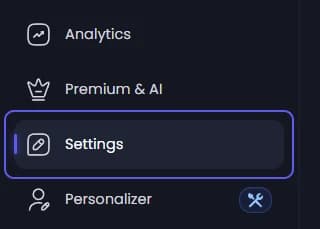
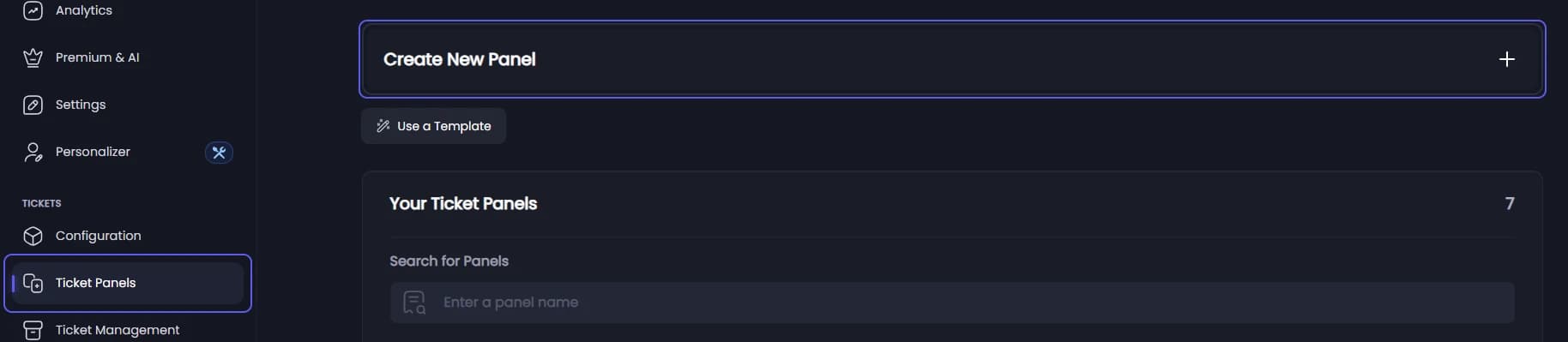
In the sidebar, click
Ticket Panels -
Click
Create New Panelto start the wizard

Select Default Ticket Style
Choose how tickets should be created when users interact with this panel:
- Text Channel (Recommended) - Creates a new text channel in your server for each ticket
- Thread - Creates a new thread for each ticket within a designated channel
You can change this setting later in the panel editor.

Configure Panel Basics
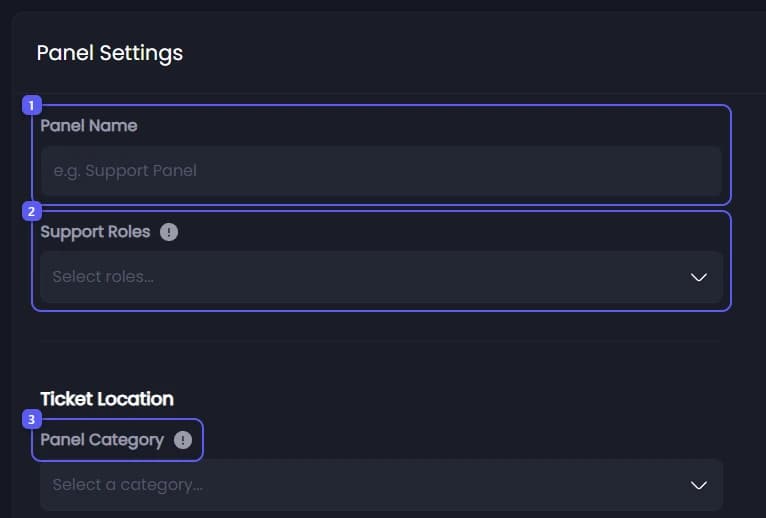
Set up the essential settings for your ticket panel:
-
Panel Name - A name to identify the panel's purpose
-
Support Roles - Select roles that can view and manage tickets opened from this panel
-
Ticket Category - Choose the Discord category where tickets will be created (this is a category, not a text or voice channel)

Customize Panel Message
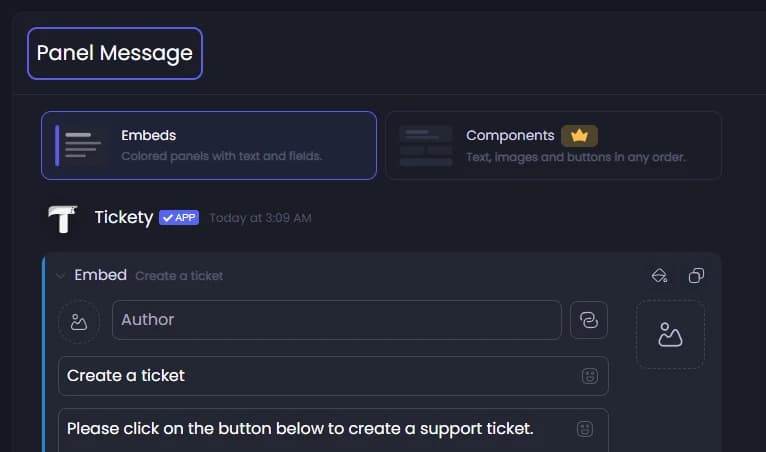
Design the embed message that users will see and configure how they interact with it.
Panel Embed:
You can customize the following aspects of the embed:
- Embed Color - Set the color of the embed's left border
- 👑 Author Icon - Add an icon image next to the author name
- 👑 Author - Set the name of the author
- 👑 Author URL - Add a clickable link to the author's name
- 👑 Thumbnail - Add a small image in the top right corner of the embed
- Embed Title - Set the main title of the embed
- Embed Description - Add the main content/description text
- 👑 Large Image - Add a large image at the bottom of the embed
- 👑 Footer Icon - Add an icon image next to the footer text
- 👑 Embed Footer - Add text at the bottom of the embed
To customize the aspects labeled with a Crown, you need a Premium Subscription.
Button Type: Choose between "Button" or "Dropdown" for user interaction.
Button Configuration: Set the emoji, label, and color for each button or dropdown option.
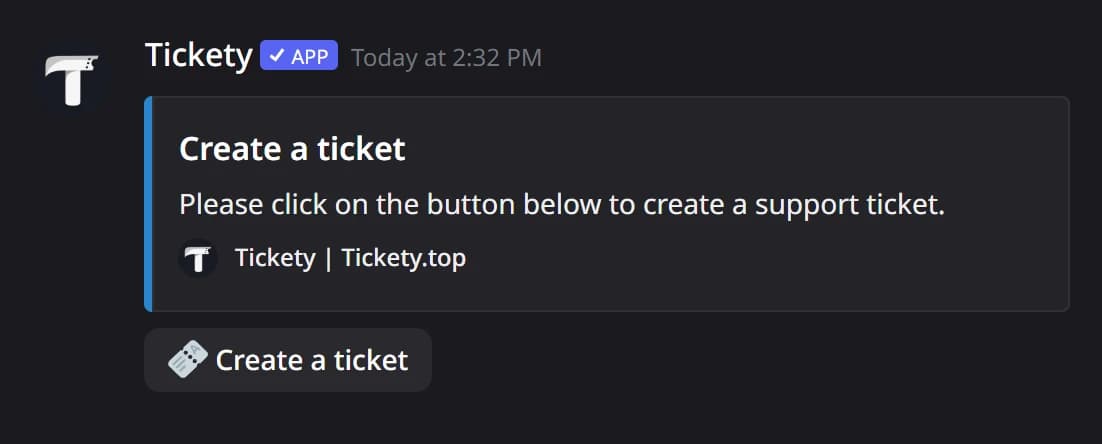
The preview shows how your panel will appear to users.

Publish
Preview your panel and choose where to send it:
- Review the panel preview to see how it will appear in Discord
- Optionally select a channel to send the panel to after creation
- Click
Finishto complete the setup
After creation, you'll be redirected to the advanced panel editor where you can configure additional settings.

Manual Configuration
After creating a panel, you can access the full panel editor by selecting your panel from the Ticket Panels list. The editor provides comprehensive configuration options organized into several tabs.
Access the Panel Editor
If you just completed the setup wizard, you'll be automatically redirected to the panel editor. Otherwise, follow these steps:
-
Go to the Tickety Dashboard
-
Click
Managefor the server you want to configure -
In the sidebar, click
Ticket Panels -
Select the panel you want to edit from the list

General Tab
Configure core panel settings including panel status, ticket location, transcript settings, ticket behavior, claiming system, and ticket footer.
Panel Settings:
-
Panel Enabled - Toggle to enable or disable the panel
-
Panel Name - The name identifying the panel's purpose
-
Support Roles - Roles that can view and manage tickets

Ticket Location:
-
Panel Category - Main category where tickets are created
-
Main Ticket Category - Primary category for ticket creation
-
Overflow Categories - Backup categories if the main category is full
-
Threading Mode - Configure thread-based ticket creation

Transcript Settings:
-
Save Transcripts - Enable or disable transcript saving
-
Save Transcript Images 👑 - Save images from ticket conversations (Premium feature)

Ticket Settings:
-
Channel Name Generation - Choose how ticket channel names are generated
-
Roles Required To Create Tickets - Restrict ticket creation to specific roles
-
Roles Blocked From Creating Tickets - Prevent specific roles from creating tickets
-
Max Open Tickets per User - Limit how many tickets a user can have open simultaneously
-
Users Can Close Tickets - Allow users to close their own tickets

Claiming:
-
Claiming System - Enable the ticket claiming system
-
Ticket Visibility - Control who can see claimed tickets
-
Only the Claimer has access to the ticket - Restrict ticket access to the claimer only

Ticket Footer:
- Text - Customize the footer text displayed in tickets
- Icon 👑 - Add a footer icon (Premium feature)
Embed Tab
Customize the panel message appearance and interaction method.
Linked Panels: Link multiple panels together in one panel message. See the Linked Panels guide for detailed instructions.

Panel Message:
Customize the embed that users see when the panel is published.
You can customize the following aspects of the embed:
- Embed Color - Set the color of the embed's left border
- 👑 Author Icon - Add an icon image next to the author name
- 👑 Author - Set the name of the author
- 👑 Author URL - Add a clickable link to the author's name
- 👑 Thumbnail - Add a small image in the top right corner of the embed
- Embed Title - Set the main title of the embed
- Embed Description - Add the main content/description text
- 👑 Large Image - Add a large image at the bottom of the embed
- 👑 Footer Icon - Add an icon image next to the footer text
- 👑 Embed Footer - Add text at the bottom of the embed
To customize the aspects labeled with a Crown, you need a Premium Subscription.
Panel Button Style: Configure how users interact with your panel. Choose between "Button" or "Dropdown" for user interaction. See the Button/Dropdown Toggle guide for more information. Define buttons or dropdown options with emoji, label, and color settings. The preview shows how your configured buttons will appear to users.

FAQ Configuration: Link a FAQ panel to your ticket panel for easy access to frequently asked questions.

Messages Tab
Configure messages sent in tickets.
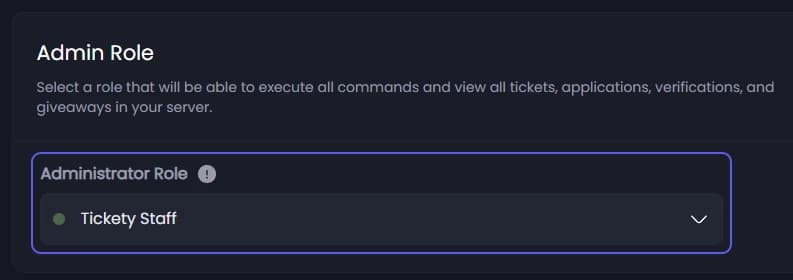
Welcome Message: Customize the first message sent when a ticket is opened. Configure the author, embed title, embed description, and footer. Configure which roles or users get pinged. By default, Support Role and Admin Role are pinged. See the Welcome Message Pings guide for detailed instructions on customizing pings.
Auto Pin Welcome Message: Toggle to automatically pin the welcome message to the top of the ticket channel.
Close Button 👑: Customize the close button that appears in tickets (Premium feature). Configure the emoji, label, and color (blue, green, or red).

Claim Button 👑: Customize the claim button for ticket claiming (Premium feature). Configure the emoji, claim label, unclaim label, and color.

Forms Tab
Configure custom forms that users must fill out when creating tickets.
Ask Questions: Create questions that users must answer before opening a ticket. Configure the question label, answer type (Text, Select, or Multi Line), required status, placeholder text, and character limits. Regex Validation 👑 is available as a Premium feature for pattern validation.

Availability Tab
Configure when your support team is available and what happens outside support hours.
Support Hours: Set up your team's availability schedule. Toggle to enable support hours, select your timezone, choose between "Basic" or "Advanced 👑" scheduling (Advanced is Premium), and configure availability for each day of the week.
Closed State Logic: Configure what happens when users try to create tickets outside support hours. Allow with Warning lets users create tickets but see a warning about delayed responses. Deny Creation 👑 blocks ticket creation until support hours resume (Premium feature).
Message Configuration: Customize messages shown based on support status. Configure messages for Reduced Support, Emergency Only, and Closed states. Toggle to disable staff pings in status messages. Support Hours Bypass Roles 👑 allows specific roles to create tickets outside support hours (Premium feature).
Logging Tab
Configure logging for ticket events.
-
Log Channel - Select a channel where ticket events will be logged
-
Send Logs in Ticket Channel - Toggle to send log messages directly in the ticket channel

Advanced Tab
Additional advanced configuration options.
-
Sync Category Permissions on Move - Automatically sync permissions when tickets are moved between categories

Related Configuration
Some ticket system settings are configured globally and apply to all panels:
- General Settings - Configure ticket limits, cooldowns, and overflow warnings
- Close Settings - Customize close messages and configure rating systems
- New Ticket Command - Configure the
/newcommand and embed - Autoclose Settings - Set up automatic ticket closure
- Request Close Command - Customize the request close command
Features marked with a crown (👑) require a Premium Subscription.